

Understanding Why Your HP Laptop Is Stuck on the Loading Screen
When your HP laptop is stuck on loading screen, it’s not just a technical hiccup—it’s your digital world grinding to a halt. That spinning circle isn’t random; it’s your system trying to make sense of something that went wrong deep in the startup chain. Most people assume it’s a Windows bug, but in reality, it’s often a silent tug-of-war between corrupted drivers, incomplete updates, or damaged boot files.
The hidden logic behind this endless HP logo is simple yet maddening: your laptop can’t complete its boot order because something essential isn’t responding fast enough. Maybe a faulty external device is interrupting communication, or a recent update left behind broken data links. Understanding this helps you stop guessing and start diagnosing intelligently.
Sometimes the signs point to software—like Windows getting stuck mid-boot. Other times, it’s a deeper hardware issue: a dying SSD, a memory failure, or an overheated motherboard. Knowing how to tell the difference means you can act precisely instead of panicking. Because once your HP laptop stuck on loading screen becomes a pattern, guessing won’t save you—methodical detection will.
The hidden logic behind the endless HP loading logo
That glowing HP logo is more than branding—it’s a diagnostic screen in disguise. It hangs there when your BIOS and Windows are miscommunicating, usually because of a missing or corrupted boot driver. What feels like a freeze is really your system waiting for a response that never comes.
Common triggers: failed updates, driver corruption, or startup loops
A failed Windows update or outdated driver can leave your startup sequence incomplete. Your system may enter an endless boot loop trying to find missing files, causing the screen to linger. Keeping your updates cleanly installed often prevents this spiral.
How to identify whether the issue is software- or hardware-based
Watch your system’s behavior. If fans run and lights flash but Windows never loads, it’s likely software. If your HP laptop shuts down abruptly or overheats before loading, you’re facing hardware trouble that needs deeper intervention.
Quick Fixes You Can Try Before Panicking
When your HP laptop stuck on loading screen makes you want to throw it across the room, start with calm, practical steps. The most effective fixes are deceptively simple—and often overlooked. The key is to interrupt the system safely before it cycles into another dead loop.
First, power it down completely, remove external devices, and perform a 10-second hard reset. This drains any lingering electrical charge that might be confusing the motherboard. Next, strip away everything nonessential—mice, USBs, even memory cards. One faulty connection can freeze the startup command mid-process.
If that doesn’t work, Safe Mode is your hidden gateway. Booting into it bypasses unnecessary drivers and startup apps, helping you identify what’s actually holding your laptop hostage. By the time you’ve gone through these steps, half of all users see their HP laptop stuck on loading screen finally spring back to life—a reminder that small actions often deliver big recoveries.
The effective 10-second hard reset trick
Pressing and holding the power button for ten seconds clears temporary memory glitches. It’s a soft electrical reset that can jolt your frozen startup sequence back into motion without risking data loss.
Unplugging all peripherals to eliminate device conflicts
Printers, drives, or even USB dongles can misfire during boot, confusing the BIOS. Disconnecting everything restores order, letting the laptop complete its initialization cleanly.
Booting into Safe Mode to bypass corrupted startup sequences
Safe Mode loads only what’s necessary for Windows to function. Once inside, you can uninstall conflicting software, update drivers, or restore to an earlier point where your system worked perfectly.
Step-by-Step Recovery Guide for Stubborn HP Boot Issues
If your HP laptop stuck on loading screen refuses to budge after quick fixes, it’s time to dig deeper. The recovery tools built into Windows are powerful—but only if you know how to use them deliberately. Think of this as the rescue phase rather than repair; you’re reviving your system, not rebuilding it.
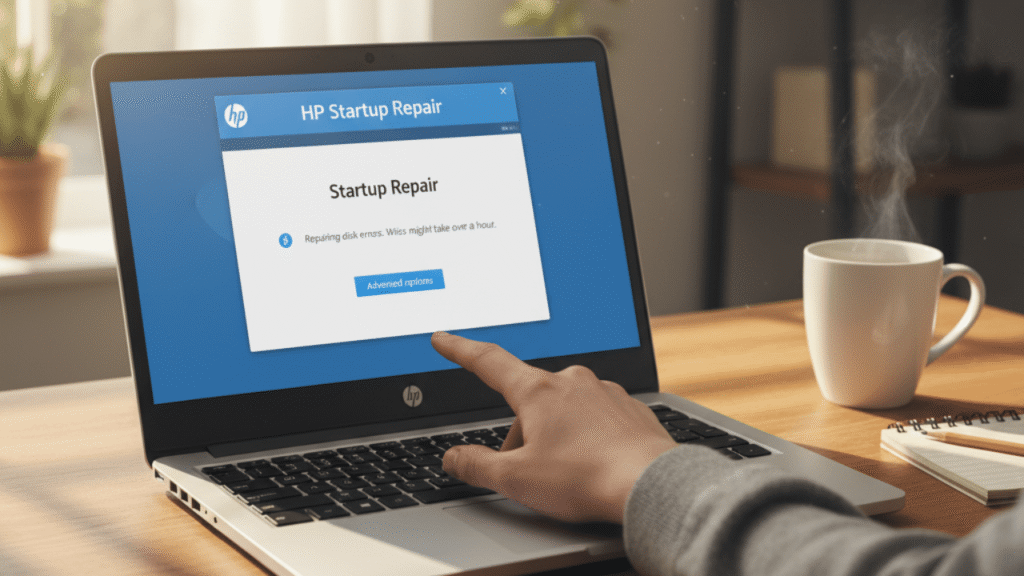
Start with the Windows Recovery Environment (WinRE), accessible by forcing three interrupted startups. Inside, select “Startup Repair.” This feature analyzes your boot files and automatically patches or replaces missing elements. If that fails, open “System Restore” and choose a date when your laptop ran smoothly.
You can also use “Command Prompt” within WinRE to run commands like sfc /scannow or chkdsk /f, which detect and repair corrupt files. With patience, this method turns your HP laptop stuck on loading screen scenario into a manageable, logical process rather than a guessing game.
How to access and use Windows Recovery Environment (WinRE)
After three failed startups, Windows automatically opens WinRE. From there, you can access tools like Startup Repair, System Restore, and Command Prompt—your system’s emergency toolkit.
Running Startup Repair correctly to fix boot errors
This automated repair checks for corrupted configuration data and replaces it. It’s not magic, but when used early, it often resolves boot loops without touching your personal files.
Restoring Windows without deleting your files
System Restore rolls your laptop back to a previous state—effectively time-traveling your system to when everything worked. It’s clean, efficient, and non-destructive.
When It’s Not Software—Hardware Clues You Shouldn’t Ignore
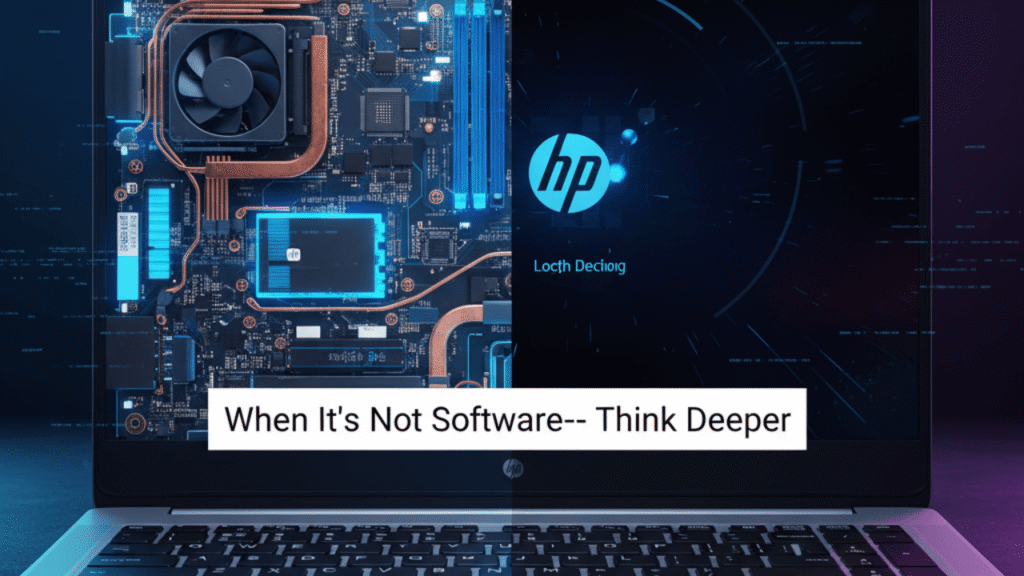
Sometimes your HP laptop stuck on loading screen is trying to tell you something mechanical. Beneath the surface, hard drives fail, RAM errors build, or overheating throttles performance to zero. Recognizing these patterns early can save both your data and your sanity.
Listen for slow clicks or repeated fan bursts—those are physical cries for help. A failing SSD might pass diagnostics but still cause random freezes. RAM issues, on the other hand, can appear as sudden black screens after the HP logo.
Run built-in HP diagnostics from the BIOS by tapping Esc or F2 during startup. These tools detect failing hardware before it collapses completely. Because once your HP laptop stuck on loading screen stems from a dying part, no amount of software tweaking will revive it—you’ll need real repairs or replacements to bring it back.
Telltale signs of a failing hard drive or RAM malfunction
Frequent system restarts or grinding noises are red flags. Faulty storage or memory delays system calls, trapping your laptop in endless loading cycles.
Safe testing methods to confirm hardware issues
HP’s built-in diagnostics run non-destructive tests on memory and storage. You’ll get clear pass/fail results, letting you act before the issue escalates.
When to consider part replacement instead of repairs
If the same error reappears after software recovery, replacement is wiser than endless patching. Modern HP models make component swaps surprisingly straightforward.
Advanced Users: Command Prompt Fixes That Actually Work
When ordinary repairs fail, the HP laptop stuck on loading screen issue demands deeper commands. Inside WinRE, Command Prompt becomes your backdoor to recovery—if you know the right codes. This is where real troubleshooting meets precision.
Start by typing bootrec /fixmbr and bootrec /rebuildbcd to repair your boot record. Then run chkdsk C: /f /r to locate and fix bad sectors. Follow up with sfc /scannow to restore damaged system files. These commands rewrite the very foundation of your Windows boot path.
If all else fails, create a bootable USB with the Windows Media Creation Tool and reinstall cleanly. It’s drastic but final—your HP laptop stuck on loading screen won’t survive this reset, and that’s the point. You’re giving it a controlled rebirth.
Using Bootrec and BCD rebuild commands effectively
These commands fix the Master Boot Record and rebuild Windows’ boot configuration. They’re essential when Startup Repair can’t detect issues automatically.
Performing CHKDSK and SFC scans to repair corrupted files
CHKDSK finds disk errors, while SFC restores lost or damaged system files. Together, they often restore stability without needing a full reinstall.
Creating a bootable USB for emergency recovery
When all else fails, a bootable USB lets you reinstall Windows from scratch. It’s the digital equivalent of a reset button for your system’s life.
Prevent It from Happening Again
A crisis teaches discipline—and the HP laptop stuck on loading screen problem is no different. Once fixed, prevention becomes your new routine. Systems rarely fail without warning; they give subtle hints we often ignore.
Set up automatic backups using Windows File History or cloud sync. This ensures no future freeze costs you valuable data. Schedule restore points before every major update so you can roll back instantly if something breaks.
Regularly clearing startup apps and updating drivers keeps your laptop lean and responsive. Maintenance might sound boring, but it’s the reason pros rarely face the HP laptop stuck on loading screen nightmare twice. Prevention isn’t just smart—it’s freedom.
Setting up automatic backups and restore points
Enable File History or OneDrive backups to protect your data. A single restore point before updates can undo a disaster in minutes.
Managing Windows updates to prevent startup corruption
Pause major updates until patches stabilize. Controlled updating keeps your boot files consistent and secure.
Cleaning up startup apps and maintaining system health
Disable unnecessary launch programs through Task Manager. Fewer processes mean faster, cleaner startups every time.
Pros and Cons of Fixing It Yourself
Pros: Handling your own repairs builds confidence and independence. You save money, learn valuable tech insight, and often solve the issue faster than waiting for support.
Cons: Mistakes can lead to data loss, accidental file deletion, or warranty voids. Some problems—especially hardware ones—need specialized tools. Still, for many, tackling the HP laptop stuck on loading screen personally is both satisfying and empowering, provided you proceed carefully and back up your system first.
When to Seek Professional Help
There’s wisdom in knowing your limits. If your HP laptop stuck on loading screen persists even after multiple recovery attempts, it’s time to hand it over to a certified technician. They have diagnostic software and replacement parts unavailable to the average user.
HP’s authorized centers can detect micro-level motherboard faults, SSD wear, and BIOS corruption. Before you visit, back up your data using an external drive or cloud sync, and note down any error codes.
Sometimes the most efficient fix isn’t DIY—it’s expert-driven. And getting your HP laptop stuck on loading screen resolved professionally means fewer risks, less downtime, and the confidence that your machine will stay stable long after it leaves the repair bench.
Signs that your HP laptop needs expert-level diagnostics
If your device repeatedly freezes before loading or displays BIOS errors, the fault lies deeper than Windows. That’s your cue to seek help.
What HP support or certified technicians can do differently
They use proprietary tools to reflash BIOS, test internal voltages, and replace faulty modules safely—tasks impossible without training.
Preparing your data and system before taking it in
Always back up critical files and remove sensitive data. Bring system details and any crash logs for faster diagnostics.
FAQ – Quick Answers to Common HP Loading Screen Issues
Q1: Why is my HP laptop stuck on the loading screen after an update?
A1: The update likely corrupted system files; try Startup Repair or Safe Mode.
Q2: Can I fix the HP loading issue without losing data?
A2: Yes—use recovery tools or restore points before reinstalling Windows.
Q3: How long should I wait before assuming it’s frozen?
A3: If it’s loading for more than 10 minutes, begin troubleshooting immediately.
Q4: Does resetting my HP laptop fix the problem permanently?
A4: It helps temporarily; regular maintenance is key for lasting stability.
Conclusion: Turning Frustration into Fixation
Every frozen boot screen begins as a moment of frustration—but ends as a lesson in awareness. The HP laptop stuck on loading screen issue is never random; it’s your device signaling imbalance. Learning to interpret those signs transforms confusion into control.
With steady troubleshooting and preventive care, your laptop won’t just recover—it’ll perform better than before. In the end, it’s not about fixing a machine; it’s about mastering the rhythm of technology itself. Once you do, every future freeze becomes just another story of how you overcame it.