
Why Your HP Laptop Might Seem Dead (But Isn’t)
When your HP laptop does not turn on, the first instinct is panic—followed by frustration. The power button feels useless, the screen stays blank, and there’s no comforting fan noise or LED flicker. But here’s the truth: most HP laptops that seem “dead” aren’t truly gone. They’re simply locked in a state of electrical confusion. This can happen after a sudden shutdown, a voltage fluctuation, or even a static charge buildup inside the system. Instead of a complete failure, it’s a temporary disconnect between your laptop’s internal power flow and its startup response.
Many users rush to assume the worst—dead battery, fried motherboard, or damaged screen—but often, the problem is less dramatic. When an HP laptop does not turn on, it might just be preserving itself from unstable energy input or an incomplete shutdown. The internal capacitors hold residual charge, confusing the BIOS and preventing normal boot-up. Performing a hard reset or removing external accessories can often restore proper flow. Think of it as giving your laptop a moment to “exhale” before trying again. In most cases, a system that seems lifeless today can surprise you with a perfect start tomorrow once the internal power loop resets.
The ‘No Power’ Myth—It’s Often a Miscommunication, Not a Failure
A laptop that refuses to turn on isn’t always broken—it’s often misunderstood. Inside every HP laptop is a delicate chain reaction that starts when you press the power button. The adapter sends voltage, the motherboard interprets it, and the BIOS wakes the components in a specific order. When any link in this chain misfires, the machine enters a silent standoff. That’s why your HP laptop does not turn on, even when it’s technically receiving power. It’s a miscommunication, not a meltdown.
This “no power” state can be triggered by tiny, invisible faults—like static interference, incomplete BIOS instructions, or a failed sleep recovery. Instead of assuming hardware failure, the smarter move is to check for life signs: a faint charging light, a fan twitch, or a brief keyboard flash. These indicate the system is alive but stuck in a boot limbo. When the HP laptop does not turn on, try disconnecting peripherals, resetting power, or initiating BIOS recovery. The truth is, most laptops aren’t dead—they’re simply waiting for the right signal to restart. By treating it like a system timeout rather than a disaster, you can often bring it back without any costly repairs.
Unplug, Hold, Reset: The Most Overlooked Power Sequence
There’s one fix that technicians swear by but everyday users rarely attempt—a deep discharge reset. If your HP laptop does not turn on, this step should be your first line of defense. Start by disconnecting the charger and removing all connected devices—mouse, USB drives, HDMI cables, everything. If your model has a removable battery, take it out. Then, press and hold the power button firmly for about 30 seconds. This simple action drains leftover static energy trapped within the motherboard’s capacitors, clearing the invisible block that often prevents startup.
After releasing the button, reconnect the charger (but not the battery yet) and try powering on. Many users are shocked when the laptop suddenly comes back to life. That’s because static electricity can freeze power circuits, tricking the system into thinking it’s already on or unsafe to start. If the HP laptop does not turn on after this, repeat the process with the battery installed. This full-cycle reset re-establishes the clean power handshake between components, often reviving machines that appeared completely dead. It’s a 60-second solution that saves countless hours of unnecessary troubleshooting.
Battery or Adapter? Finding the Real Source of the Problem
Power issues often hide in plain sight. When your HP laptop does not turn on, the first suspect shouldn’t be the laptop itself—it’s the power source. A faulty adapter, damaged charging pin, or weak battery can all create the illusion of a dead device. Start by testing the charger on another HP laptop or checking for the small blue LED on the connector tip. No light? The adapter might have failed. If it lights up but the laptop stays dark, remove the battery (if possible) and power the system directly from the adapter.
This isolation test often reveals where the real problem lies. A failing battery can block current flow, confusing the motherboard. Likewise, a loose or oxidized charging pin can interrupt voltage delivery, making your laptop appear lifeless. If your HP laptop does not turn on, cleaning the adapter port with a soft brush or using a different charger can make a world of difference. Many so-called “dead” HP laptops revive instantly once their power path is restored. It’s rarely about the core hardware—it’s about ensuring electricity reaches where it’s needed without resistance or interruption.
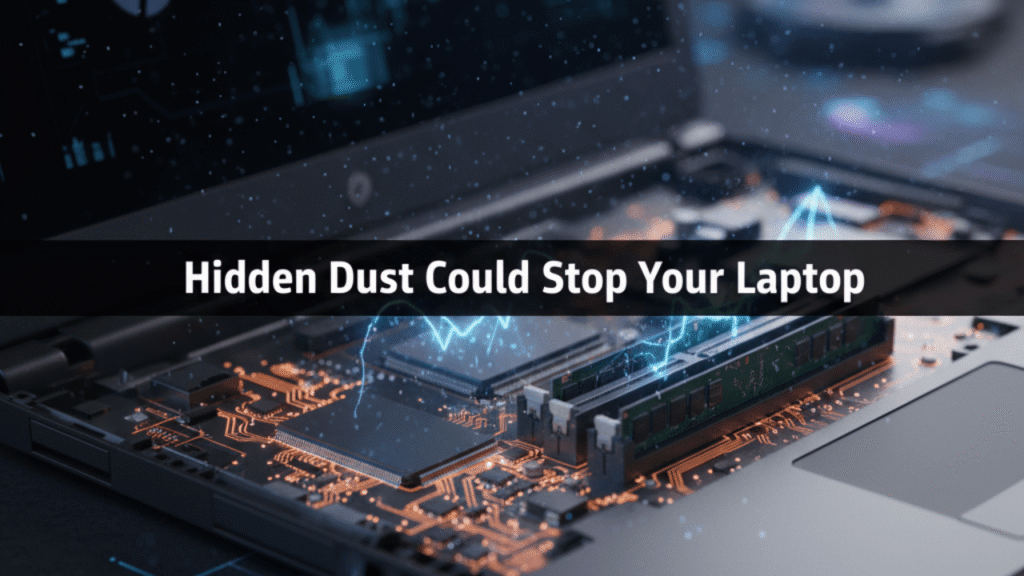
Inside the Machine: Hidden Static and Dust Build-Up Issues
When dust meets static, even the healthiest laptop can act possessed. If your HP laptop does not turn on, internal contamination might be the silent culprit. Over time, tiny dust particles settle around fans, vents, and memory slots, storing static charges that interfere with normal circuitry. The result? Shorted contacts, confused voltage distribution, and startup failure. This issue is especially common in environments with humidity or limited airflow, where particles cling more aggressively to metallic components.
Regular internal cleaning is not optional—it’s preventive maintenance. Opening the back panel and using compressed air to clear vents can drastically improve power flow. Cleaning the RAM slots and power connectors ensures stable grounding. Many users are amazed when their laptop suddenly powers on after a deep clean—it’s not magic, it’s science. When the HP laptop does not turn on, and every software fix fails, remember that physical interference might be blocking the connection. A clean interior often restores electrical harmony, bringing your system back to life without a single part replacement.
Tech Tip: How to Use HP’s Built-in Diagnostics Tool the Right Way
HP’s engineers built a powerful self-repair feature right into their laptops—but most users never use it. When your HP laptop does not turn on, this diagnostics tool can be a lifesaver. Start by pressing Esc repeatedly right after pressing the power button, then tap F2 for System Diagnostics. Even if the screen looks blank at first, this shortcut often triggers the internal test suite before Windows loads.
From there, you can run quick tests on the battery, memory, and storage. These checks reveal whether power is reaching the components correctly or if there’s a deeper issue like BIOS corruption or RAM failure. If the test reports a power or system board error, you’ve pinpointed the issue without any guesswork. Many technicians rely on this exact method to isolate faults before repairs. So, if the HP laptop does not turn on, don’t rush to a service center—use the tool built by HP to diagnose itself. Knowing the cause before paying for a fix gives you control, confidence, and potentially saves hundreds in repair costs.
Before the Repair Shop: Data Safety and Backup Advice
When your HP laptop does not turn on, your files might still be perfectly safe inside the drive. It’s a mistake to assume a dead laptop means lost data. The storage drive—whether SSD or HDD—often remains unharmed even when the motherboard or power system fails. Before handing your laptop to a technician, remove the drive carefully and connect it to another computer using a SATA-to-USB adapter. Within seconds, your data becomes accessible, ready for backup.
This step is crucial. Repair procedures often involve reinstallation, formatting, or component replacement that can wipe your information completely. Always secure your personal data before repair begins. If your HP laptop does not turn on and you hear clicking or whirring from the drive, act fast—those are signs of physical disk failure. In that case, professional data recovery may be needed. Protecting your files is not just about convenience—it’s about peace of mind. Your laptop can be replaced; your digital memories can’t.
Prevent Future Shutdowns—Habits That Keep HP Laptops Alive Longer
If your HP laptop does not turn on, chances are the failure didn’t happen overnight—it built up quietly. Long hours of plugged-in charging, blocked ventilation, and skipped BIOS updates slowly degrade performance until the system finally refuses to start. The good news? You can prevent this cycle entirely by adopting better habits. Give your laptop short charging breaks instead of keeping it constantly powered. Use it on hard surfaces to allow proper cooling. Schedule system updates to maintain stable firmware communication.
Prevention isn’t glamorous, but it’s powerful. Clean your vents monthly, store your device in dry conditions, and never ignore warning signs like overheating or random shutdowns. These small actions preserve internal balance and battery health. When your HP laptop does not turn on, it’s often the result of stress it’s been enduring for months. Treating your device with the same care you give your phone or car ensures reliability, longevity, and the confidence that the next time you press that power button—it will respond instantly.
FAQ: When Your HP Laptop Does Not Turn On
Q1: What should I do first when my HP laptop does not turn on?
Start by disconnecting all external devices, unplugging the charger, and holding the power button for 30 seconds. This resets any internal power blockage and often restores startup.
Q2: Can a dead battery stop my HP laptop from turning on even when plugged in?
Yes. A shorted or drained battery can interrupt power flow. Try removing the battery (if possible) and powering the laptop directly from the charger to isolate the issue.
Q3: Why does my HP laptop show lights but won’t start?
If lights blink but the screen stays dark, it usually indicates BIOS or memory miscommunication. A hard reset or BIOS recovery can often fix this silent startup failure.
Q4: Is it safe to open my HP laptop to clean dust when it doesn’t power on?
Yes, if you’re careful. Static buildup from dust can block circuits. Use compressed air and avoid touching internal chips directly. A clean interior improves power consistency.
Q5: Can I recover my data if my HP laptop won’t turn on at all?
Absolutely. Remove the internal drive and connect it to another computer using a SATA-to-USB adapter. Your files can usually be accessed and backed up safely before repairs.
Q6: How do I know if the power adapter is the real problem?
Check the small LED indicator on the adapter tip. If it doesn’t light up or feels unusually hot, the adapter may have failed. Testing with another HP charger confirms it quickly.
Q7: When should I seek professional repair for my HP laptop?
If the hp laptop does not turn on even after power resets, adapter checks, and BIOS recovery, it’s time to consult a certified technician. Persistent no-power issues can indicate motherboard or DC jack faults that require expert handling.
Conclusion: Turning Frustration into Fixes
When your hp laptop does not turn on, it’s easy to assume the worst—but that dark screen doesn’t always mean disaster. Most startup failures are reversible, caused by power interruptions, static buildup, or minor internal conflicts. Learning to perform a proper hard reset, clean your system, and isolate the power source puts control back in your hands.
The key is patience and precision. Don’t rush to replace your device or fear total failure. Take logical steps—reset, test, observe, and clean. In many cases, the same laptop that sat lifeless yesterday will power up perfectly tomorrow.
Treat your HP laptop like a living system that occasionally needs to breathe and reset. With smart maintenance habits and awareness of warning signs, you can avoid sudden shutdowns and extend your device’s lifespan dramatically. Because in truth, when your hp laptop does not turn on, it’s rarely the end—it’s often just a pause waiting for the right restart.