

A Samsung TV in 2025 no longer feels like a simple entertainment device—it feels like a personal upgrade to how you live. The 2025 lineup shows how far display intelligence has evolved, and the best part is how naturally a Samsung TV blends premium visuals with day-to-day usefulness. Rather than chasing buzzwords, Samsung doubled down on meaningful picture processing, cleaner software, and better calibration out of the box. What stands out this year is the balance: sharpness without harshness, brightness without burnout, and contrast without the artificial “soap-opera” effect. It feels considered, not chaotic.
The real difference becomes obvious the moment you step from an older TV to a 2025 unit. Colors are controlled, blacks hold their depth, and motion finally looks natural rather than digitally smeared. Samsung also cut down the clutter in Smart Hub, making navigation smoother and less distracting. If you’re planning a purchase this year, choosing the right Samsung TV is less about decoding specs and more about understanding how the technology fits your viewing habits. And that’s exactly where this guide starts.
Why Samsung TV Models Stand Out in 2025
The most striking thing about 2025 models is how confidently they manage light. Instead of boosting brightness just for marketing, Samsung tuned the panels to deliver clean highlights without crushing detail. Whether you watch movies in a dark room or sports in a bright one, the image maintains its depth. The newer processors also handle fast motion with a level of stability that feels surprisingly natural. And although competitors are catching up, Samsung’s calibration accuracy this year sets a new standard for plug-and-play picture quality.
Key Features You Should Actually Care About (Samsung TV)
Not every feature matters, and Samsung seems to understand that better than most. What genuinely affects your experience is the panel type, peak brightness, motion handling, and software smoothness. These determine how your movies look, how responsive your games feel, and how effortless navigation becomes. Many buyers overlook these fundamentals and chase the wrong specs. But with a Samsung TV, focusing on these essentials gives you all the performance you actually need without unnecessary upgrades.
QLED vs OLED vs Neo QLED: Which Samsung TV Tech Fits Your Space?
Each display type has a personality. OLED delivers perfect black levels and a more cinematic feel, but it truly shines in darker rooms. QLED performs better in bright spaces thanks to its higher luminance and color volume. Neo QLED blends the best of both by using Mini-LED backlighting to increase contrast dramatically. The right choice depends on where you watch, not what sounds more advanced. Matching your environment to your panel tech makes the Samsung TV feel tailored instead of generic.
Best Samsung TV Models by Budget (Entry, Mid-Range, Premium)
Entry-level Samsung TVs now offer surprisingly strong contrast thanks to improved backlighting control. Mid-range models bring the ideal balance of brightness and processing, making them the safest recommendation for most households. Premium models go all-in on clarity, local dimming precision, and high-end HDR performance. If your living room doubles as a home theater, the jump to premium is noticeable. But if you watch a mix of streaming and sports, mid-range models are more than enough and still feel luxuriously sharp.
Hidden Settings That Instantly Improve Picture Quality (Samsung TV)
Samsung ships its TVs in overly bright store modes, which means most users never see what the panel can really do. Switching to Filmmaker Mode removes artificial sharpening and unlocks natural color accuracy. Reducing motion smoothing eliminates the plastic look often mistaken for “HDR problems.” Fine-tuning local dimming gives you deeper blacks without crushing shadow detail. These small adjustments take minutes but transform the picture. Even older content starts looking cleaner and better balanced.
Common Mistakes People Make When Choosing a Samsung TV
One common mistake is buying a TV that’s physically too small for the room. Another is choosing brightness over contrast, when contrast contributes far more to perceived quality. Many people ignore reflection handling, even though it drastically affects daytime viewing. Others choose an advanced model without checking whether their room layout or usage justifies it. Understanding these pitfalls keeps you from overspending—or worse, undershooting—and ensures your Samsung TV feels impressive from day one.
Final Checklist Before You Hit “Buy” (Samsung TV)
Before ordering, confirm your viewing distance, wall-mount compatibility, and the number of HDMI 2.1 ports you need. Make sure the panel brightness suits your environment, not just the spec sheet. Double-check that your streaming, gaming, and soundbar needs align with the model you’re choosing. If possible, preview content similar to what you’ll watch at home. A little pre-planning ensures your new Samsung TV isn’t just technically superior—it’s practically perfect for your lifestyle.
Samsung TV Setup Tips That Dramatically Improve Performance
A Samsung TV can look good straight out of the box, but with a little tuning, it can look extraordinary. Proper setup unlocks clarity, depth, and smoothness that most people never experience because they rely on default settings. The right adjustments make colors more accurate, motion more natural, and shadows more detailed. The difference is often dramatic enough to feel like a panel upgrade. And because a Samsung TV is built for calibration flexibility, even small tweaks have a big payoff.
The goal here isn’t to overwhelm you with technical jargon. It’s to show how a few smart choices can sharpen your picture, boost your sound, and reduce the lag that ruins good content. You don’t need professional equipment to get the most out of your display—just a clear understanding of what matters and what doesn’t. These setup tips refine the experience the way Samsung intended, enhancing performance in a way that feels instantly noticeable and continuously satisfying.
The One Setting Most Users Never Touch (But Should)—Samsung TV
Contrast Enhancer is one of those features people ignore because it sounds like a gimmick, but turning it off actually improves the picture. With it enabled, shadows lose detail and highlights look artificial. When it’s off, the picture becomes more balanced and cinematic. Combine that with a good local dimming setting, and the results are surprisingly professional. Most viewers notice the improvement immediately, especially during dark scenes.
How to Optimize Brightness, HDR, and Motion Settings (Samsung TV)
Start with Filmmaker Mode or Movie Mode to eliminate artificial processing. Adjust brightness only after disabling Eco mode, which often makes HDR inconsistent. Keep motion settings minimal to avoid soap-opera effects unless you specifically like a smoother look. HDR looks best when brightness and contrast work together, not against each other. Once calibrated, the panel produces a sharp, stable, and natural-looking image.
Best Sound Setup for Samsung TV: Built-In vs Soundbar
Built-in speakers have improved, but physics still limits them. For most rooms, a compact soundbar instantly delivers richer voices and cleaner bass. If you own a Samsung soundbar, Q-Symphony links the TV speakers and soundbar together for a fuller soundstage. Dialogue gets clearer, especially at lower volumes. It’s an effortless upgrade that makes every show feel more immersive.
Game Mode Secrets for Ultra Smooth Gameplay—Samsung TV
Game Mode reduces input lag dramatically, but many users forget to enable VRR and ALLM. With these active, the TV adapts to real-time frame changes and eliminates stutter. Samsung’s Game Bar also helps you monitor resolution, refresh rate, and latency without interrupting gameplay. These features are essential for consoles like the PS5 and Xbox Series X. Once you activate them, responsiveness jumps to pro-level smoothness.
Wi-Fi & Smart Hub Fixes to Avoid Lag and Frustration (Samsung TV)
Moving your TV closer to the router or using a wired connection can eliminate buffering entirely. Resetting Smart Hub clears software hiccups that build up over time. Disabling auto-launch features reduces slowdowns during startup. Even clearing the app cache frees memory and improves responsiveness. These tiny maintenance steps keep the Samsung TV’s software fast and stable.
How to Use Ambient Mode Like a Pro—Samsung TV
Ambient Mode can act as artwork, a weather dashboard, or a subtle lighting element. Picking darker backgrounds reduces energy usage while still enhancing the room’s atmosphere. You can also sync photos from your phone to turn the TV into a personal gallery. When paired with smart lighting, the feature creates a cohesive mood. It’s one of the most underrated lifestyle upgrades on modern Samsung displays.
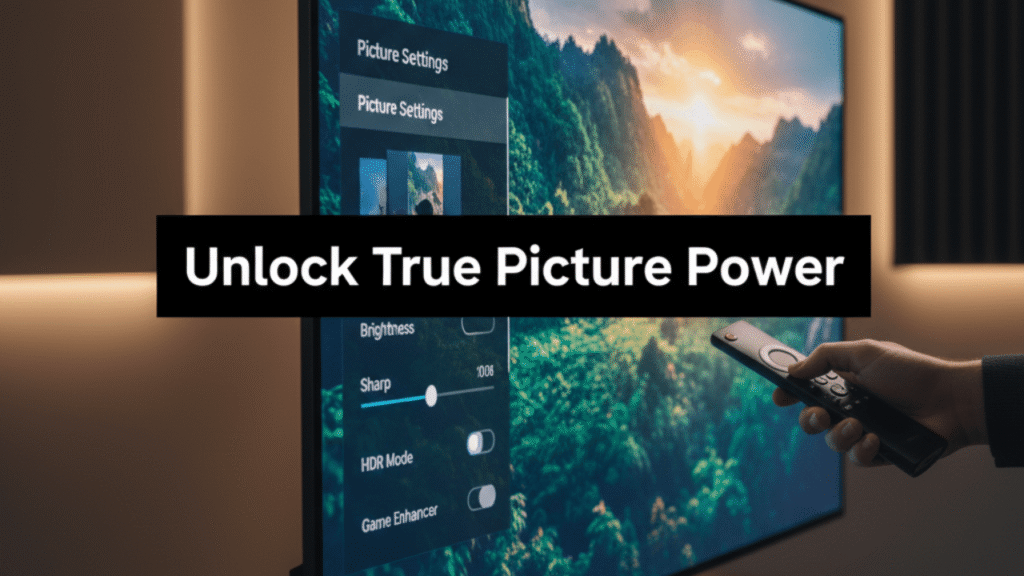
Samsung TV Problems & Fixes Nobody Explains Clearly
Even the best Samsung TV can run into occasional issues, and the biggest frustration is how vague troubleshooting guides can be. Instead of guessing, you deserve fixes that are direct, actionable, and based on how these TVs actually behave in real-world use. The good news is that most problems—from flicker to freezing—are symptoms, not failures. With the right steps, they’re easy to diagnose and even easier to fix.
The key is understanding where the problem originates: software, settings, cables, or external devices. Once you isolate the cause, the solution becomes obvious. Samsung also built several reset options into its system that many owners never use. These tools can restore performance in seconds. Let’s break down the problems people face most often and address them with practical clarity.
Why Your Samsung TV Turns Off Randomly (Real Causes)
Auto Power Off, Eco Mode, and Sleep Timers can shut down the TV without warning. Faulty HDMI-CEC signals from consoles can also trigger sudden shutdowns. Updating firmware resolves many power-cycle issues caused by older software. If the TV still turns off, disconnect all external devices and test again. In rare cases, a power board issue may be the culprit, but most shutdowns are fixable in minutes.
Solutions for Screen Flicker, Dimming, or Color Distortion—Samsung TV
Flicker often comes from a malfunctioning brightness sensor, so disabling adaptive brightness usually fixes it. Sudden dimming is typically linked to local dimming settings that are too aggressive. Color distortion can occur when picture modes conflict with external devices. Resetting the Picture Mode clears these leftover settings. If the issue appears only with one app, a reinstall usually solves it.
When the Remote Stops Working—Quick Reset Tricks (Samsung TV)
Hold both volume buttons for a few seconds to force a Bluetooth reconnect. If that fails, remove the batteries or reset the SolarCell remote by holding the power button. Sometimes the TV’s Bluetooth module freezes, so a soft reset of the TV restores connection instantly. You can also use the Samsung SmartThings app as a temporary remote. These fixes usually revive the remote without replacing anything.
Smart Hub Freezing? Easy Steps to Refresh & Restore—Samsung TV
A slow or frozen Smart Hub is usually caused by app cache buildup. Resetting the Smart Hub clears all temporary files without deleting your apps. If the issue persists, reinstalling heavy apps like YouTube or Netflix often speeds things up. Weak Wi-Fi can also freeze the interface, so test your network connection. After a refresh, Smart Hub feels noticeably lighter.
Common App Issues and How to Fix Them Fast—Samsung TV
Most app crashes happen because the TV is low on memory. Clearing cache or reinstalling the affected app resolves this. If multiple apps are affected, a Smart Hub reset is the fastest solution. Updating firmware eliminates compatibility bugs that cause frequent crashes. And if an app simply refuses to load, using the browser version can be a temporary workaround.
When to DIY and When to Call Samsung Support (Samsung TV)
DIY repairs are safe when dealing with settings, software resets, or external devices. But issues like vertical lines, panel discoloration, or loud popping noises require professional attention. Support can also diagnose internal board issues remotely. If your TV is under warranty, repairs are often free. Calling support early prevents small issues from becoming permanent damage.

Samsung TV Features That Most Owners Don’t Know Exist
A Samsung TV hides far more features than most users ever discover. They’re tucked inside menus, quietly enhancing performance or unlocking new ways to use your screen. The beauty of these features is how practical they are—they’re not hidden for the sake of complexity, but because Samsung keeps the interface clean. Once you uncover them, the TV feels smarter and more personalized than you imagined.
These features also extend your TV’s lifespan by adapting to how you watch. Whether you want more cinematic images, easier multitasking, or more nuanced sound, the tools are already built in. You just have to know where to look. Let’s explore the capabilities that transform your display from a screen into a versatile home hub.
Hidden Picture Modes for Movies, Sports, and Gaming—Samsung TV
Samsung includes optimized presets like Filmmaker Mode, Standard, and Dynamic for different content types. Sports Mode increases motion clarity while preserving natural skin tones. Gaming Mode reduces lag and enhances contrast for darker game environments. Movie Mode decreases harsh sharpening for a more cinematic feel. Experimenting with these presets helps you discover the perfect setting for each genre.
How to Enable Multi-View for Dual Screens—Samsung TV
Multi-View lets you watch two inputs side by side, making it perfect for gaming while streaming or monitoring live events. Connecting your phone makes setup incredibly simple. You can resize or reposition each window for better comfort. Audio can come from either source with one switch. It’s a powerful tool for multitaskers.
Secret Sound Customization Settings—Samsung TV
Under the expert settings menu, you’ll find equalizer controls that can dramatically enhance clarity. Adjusting treble improves dialogue, while subtle bass adjustments add presence without distortion. Adaptive Sound analyzes content in real time to optimize output automatically. The TV even adjusts audio based on room acoustics. These tools make built-in speakers surprisingly impressive.
Voice Assistant Shortcuts That Save Time—Samsung TV
Bixby, Google Assistant, and Alexa can all handle quick tasks like switching inputs or opening apps. You can also check the weather, control smart lights, or ask for sports scores without leaving the screen. Voice shortcuts reduce time spent navigating menus. It’s especially helpful when you’re multitasking or watching in a dim room. It makes daily use feel smoother.
Using Your Phone as a Powerful Second Controller—Samsung TV
The Samsung SmartThings app turns your phone into a touchscreen remote. You can type using the phone keyboard, making searches much faster. The app also allows quick picture adjustments without interrupting playback. Casting photos or videos from your phone takes seconds. It’s a feature that most owners never try but instantly appreciate.
SmartThings Automations You’ve Probably Never Tried—Samsung TV
Smart automations allow your TV to react to events like motion detection, door sensors, or lighting changes. For example, the TV can turn on ambient mode when you enter the room. It can dim automatically at night or switch profiles based on the person watching. The possibilities extend far beyond entertainment. Once configured, the TV becomes part of your home ecosystem.
Comparing Samsung TV Models: What’s Actually Worth the Money
Comparing Samsung TV models can feel overwhelming because the differences appear subtle on paper but massive in practice. The 2025 lineup includes everything from ultra-affordable models to flagship displays that rival professional monitors. Understanding the distinctions helps you avoid paying for features you won’t use while ensuring you get the performance you expect. The smartest buyers choose based on environment, habits, and long-term value—not hype.
A Samsung TV is designed to scale intelligently across its lineup, meaning even budget units deliver respectable clarity and color. The step-ups matter, but only if they improve your personal viewing conditions. This section breaks down the practical differences so you can make a confident, well-informed decision. The goal isn’t to push you toward the most expensive model—it’s to help you find the one that feels worth the money.
QLED vs Neo QLED: Real-World Differences—Samsung TV
Neo QLED uses Mini-LEDs to create deeper blacks and more precise contrast. QLED still looks fantastic but can struggle in darker rooms with complex scenes. Neo QLED models handle reflections better and maintain color accuracy at higher brightness. For bright rooms or movie lovers, the upgrade is noticeable. For casual viewers, QLED remains an excellent value.
Is OLED Worth the Upgrade? (Samsung TV)
Samsung’s OLED models offer near-perfect black levels and stunning contrast. They’re ideal for night-time movie fans or anyone who values cinematic quality. OLED handles fast motion beautifully due to its pixel-level response time. Burn-in is far less of a risk than it used to be. If you prioritize depth and realism, OLED is absolutely worth the premium.
Frame TV vs Standard Models: Lifestyle or Hype?—Samsung TV
The Frame TV excels as a piece of decor, blending into walls like art when not in use. Standard models outperform it in brightness and contrast, especially for HDR content. The Frame still looks great for everyday viewing, but it’s designed for aesthetics first. If your room doubles as a gallery or you love interior design, it’s a perfect fit. Otherwise, performance-focused models offer better value.
Refresh Rates, Upscaling, and AI Enhancements Explained Simply—Samsung TV
Higher refresh rates create smoother motion in sports and gaming. AI upscaling improves lower-resolution content and removes compression noise. Samsung’s processors analyze each frame to enhance clarity without over-sharpening. These technologies matter more than raw pixel count. They ensure all your content looks stable, clean, and visually pleasing.
Best Samsung TV for Small Rooms, Large Rooms, and Home Theaters
Smaller rooms benefit from mid-range QLEDs, which balance brightness and energy efficiency. Large rooms need better reflection handling and higher peak brightness found in Neo QLED models. Dedicated home theaters shine with OLED panels thanks to their infinite contrast. The right model makes your space feel optimized rather than forced. Room size is one of the most important factors in choosing correctly.
Price Comparison Chart That Reveals True Value—Samsung TV
Pricing varies widely depending on the panel type and size. QLED models offer the best overall value for mixed usage. Neo QLED delivers a high-end experience without reaching OLED prices. OLED models command a premium but deliver unmatched contrast. The real value comes from aligning the price with your viewing habits. Spending wisely ensures your Samsung TV feels impressive for years, not months.
FAQ — Samsung TV
What makes a Samsung TV better than other brands?
Samsung TVs stand out for their balanced brightness, smooth processing, and refined color accuracy. They also offer consistently strong software performance with long-term firmware support.
Is Samsung QLED or OLED better for home use?
QLED is ideal for bright rooms with lots of natural light. OLED delivers deeper blacks and is perfect for cinematic, low-light environments.
How long does a Samsung TV usually last?
With proper calibration and ventilation, most Samsung TVs last 7–10 years. High-end models often hold picture quality even longer.
Why is my Samsung TV lagging or slowing down?
App cache buildup or outdated firmware usually causes sluggishness. Resetting Smart Hub and updating software fixes most issues quickly.
Do Samsung TVs support PS5 and Xbox Series X features?
Yes, most Samsung models support 4K 120Hz, VRR, and ALLM. Enabling Game Mode unlocks optimal performance.
Can a Samsung TV be used as a computer monitor?
Absolutely—Samsung’s low input lag and crisp upscaling make it monitor-friendly. Just use PC Mode for the sharpest text and better color mapping.
Are Samsung TVs good for bright rooms?
Yes, especially QLED and Neo QLED models which excel in high-luminance environments. Their anti-reflective coatings also reduce glare effectively.