

Why iPhone Photo Don’t Automatically Sync with Windows PCs
How to transfer photo from iPhone to PC computer becomes confusing the moment users expect things to “just sync.” That expectation breaks because Apple never designed iPhones to treat Windows PCs as equal partners. The disconnect isn’t a bug—it’s a deliberate boundary. iPhones store photos inside a tightly controlled system where access is granted, not shared.
At the core of the confusion is file translation. iPhones capture images in HEIC format, optimized for Apple devices, while Windows expects familiar JPEG behavior. When the two meet, Windows doesn’t know whether it’s browsing, copying, or negotiating permission. The result feels broken, even when nothing is technically wrong.
Apple’s ecosystem thrives on continuity between iPhone, iPad, and Mac. Windows exists outside that circle. That’s why photo transfers rely on manual approval, trust prompts, and sometimes inconsistent behavior. It’s not hostility—it’s insulation.
Understanding how to transfer photo from iPhone to PC computer starts by accepting this design reality. Once you stop expecting automatic sync and start working with Apple’s controlled access model, transfers become predictable instead of frustrating.
The real reason transfers feel confusing
The phone decides when and how files can be accessed, not the computer. That power imbalance creates delays, prompts, and failed attempts that feel random but are actually intentional safeguards.
Apple’s ecosystem limits explained simply
Apple prioritizes privacy and internal continuity, not cross-platform ease. Windows access exists, but only through narrow, permission-based doors.
Before You Transfer: Small Settings That Prevent Big Problems
How to transfer photo from iPhone to PC computer successfully often depends on actions taken before any cable is plugged in. Most failed transfers trace back to overlooked settings, not faulty hardware. The iPhone treats photo access as a sensitive permission, and one wrong toggle can silently block everything.
Storage behavior matters more than people realize. When iPhone storage is optimized, photos may exist only as previews until accessed. Windows can’t copy what isn’t physically stored. Meanwhile, charging-only cables pass power but no data, creating the illusion of a dead connection.
Permissions add another invisible layer. If the trust prompt is ignored or dismissed once, future connections can fail without explanation. Windows assumes access. iOS withholds it.
Preparing properly transforms the entire experience. Once settings align, how to transfer photo from iPhone to PC computer becomes consistent instead of unpredictable.
Storage, permissions, and cable checks
Optimized storage delays file availability, trust prompts gate access, and low-quality cables block data. All three must align for a clean transfer.
How to avoid corrupted or missing photos
Keep the phone unlocked during transfer and avoid background interruptions. Stability preserves both file integrity and metadata.
Method 1: Transfer Photos Using a USB Cable (Fastest & Most Reliable)
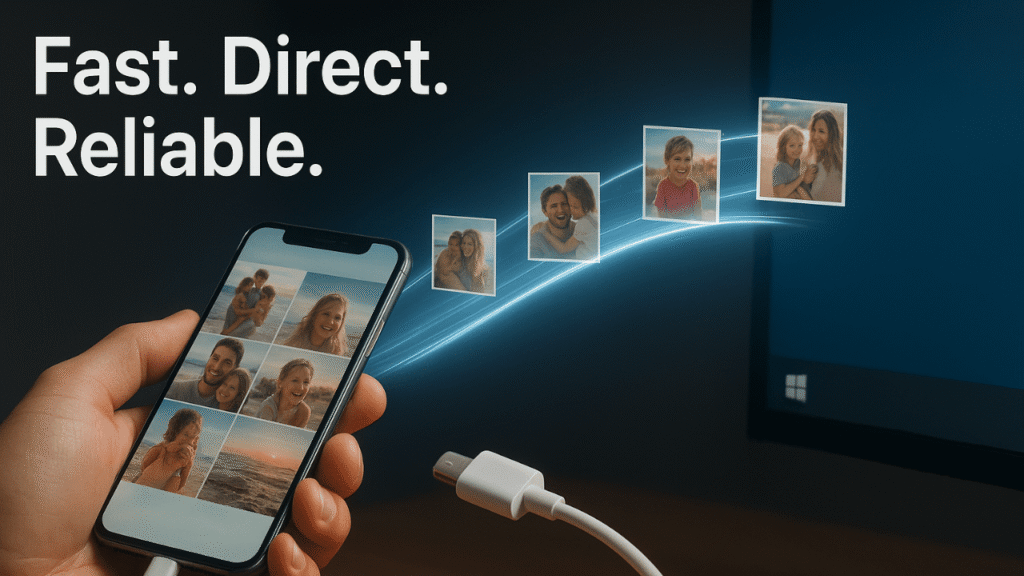
How to transfer photo from iPhone to PC computer reaches peak reliability when a wired connection is used. A direct cable bypasses wireless instability and cloud delays, delivering raw files straight from device to disk. Speed isn’t the only benefit—control is.
Once connected, the iPhone presents itself as a media device, not a drive. Windows reads photos through a filtered lens, which protects system files while exposing images. This design feels limiting but ensures safety.
Quality preservation depends on one key setting: “Keep Originals.” Without it, iOS may convert files mid-transfer. Location awareness matters too. Photos don’t land randomly—they follow Windows’ import logic unless redirected.
Mastering this method turns how to transfer photo from iPhone to PC computer into a repeatable, zero-risk routine.
Step-by-step process
Unlock the phone, approve trust, and let Windows initiate import. The phone must remain active for uninterrupted access.
How to keep original quality and metadata
Disable automatic conversion settings. This preserves timestamps, locations, and original resolution.
Where photos actually go on your PC
Windows routes imports to default picture directories unless manually reassigned during the import prompt.
Method 2: Transfer Photos Without iTunes (Built-In Windows Tools)
How to transfer photo from iPhone to PC computer doesn’t require Apple software at all. Windows already includes tools capable of handling photo imports cleanly. The Photos app favors simplicity, while File Explorer favors control.
The Photos app automates detection and sorting, ideal for users who want minimal decisions. File Explorer exposes folder structures, allowing selective transfers without automation. Each approach serves a different mindset.
Real-world usage defines the winner. Casual users value speed. Power users value visibility. Knowing the difference saves time and frustration.
Choosing the right tool reframes how to transfer photo from iPhone to PC computer as a preference, not a problem.
Windows Photos app vs File Explorer
Photos simplify. Explorer exposes. Both work, but they serve different control levels.
Pros, cons, and real-world use cases
Automation trades flexibility for ease. Manual browsing rewards precision but demands attention.
Method 3: Wireless Transfer Options (No Cable Required)
How to transfer photo from iPhone to PC computer wirelessly sounds ideal—until expectations meet reality. Wireless transfers trade speed and certainty for convenience. iCloud for Windows acts as a bridge, syncing rather than copying.
Syncing introduces delays and storage dependencies. Photos appear gradually, not instantly. Network stability becomes the deciding factor, not hardware.
Wireless shines for daily backups and light usage. Large transfers expose its limits quickly. Understanding this boundary prevents disappointment.
Used correctly, how to transfer photo from iPhone to PC computer wirelessly becomes a background process, not a bottleneck.
iCloud for Windows explained honestly
It mirrors photos, not moves them. Sync status dictates availability.
When wireless transfer makes sense—and when it doesn’t
Perfect for ongoing sync. Inefficient for bulk migrations or time-sensitive work.
How to Transfer Large Photo Libraries Without Freezing or Errors
How to transfer photo from iPhone to PC computer at scale demands patience and strategy. Thousands of files strain both devices, especially when attempted in one sweep. Heat, memory limits, and background tasks all compete for stability.
Breaking transfers into batches reduces risk. Keeping the phone awake ensures file availability. Disabling sleep modes prevents mid-transfer disconnects.
Performance improves when Windows isn’t multitasking heavily. Transfers thrive on focus, not background noise.
Handled smartly, how to transfer photo from iPhone to PC computer remains smooth even with massive libraries.
Handling thousands of photos safely
Segment transfers by date or album to reduce system strain.
Speed optimization tips
Use high-quality cables and avoid simultaneous software updates during transfer.

Common Transfer Problems and How to Fix Them Fast
How to transfer photo from iPhone to PC computer fails most often for simple reasons disguised as complex issues. Detection errors usually stem from locked devices. Missing photos often trace back to optimized storage. Midway stops signal power or permission interruptions.
Each problem has a clear cause once understood. The frustration comes from vague error messages, not technical mystery.
Quick fixes restore flow when approached logically. Awareness replaces guesswork.
Solving these issues once makes knowing how to transfer photo from iPhone to PC computer reliable forever.
iPhone not detected
Unlock the device and reconnect using a verified data cable.
Photos not showing up
Ensure originals are stored locally, not cloud-only placeholders.
Transfer stopping midway
Prevent sleep mode and keep the phone powered during the process.
Best Way to Organize iPhone Photos Once They’re on Your PC
How to transfer photo from iPhone to PC computer isn’t complete when files arrive. Organization determines whether photos remain useful or disappear into chaos. Windows imports by date, but that’s only a starting point.
Custom folders based on events or years create clarity. Renaming conventions preserve context long-term. Backups transform one copy into security.
Good organization makes retrieval instant. Poor organization makes photos effectively lost.
Done right, how to transfer photo from iPhone to PC computer becomes a foundation, not a final step.
Folder structure that saves time
Event-based directories outperform date-only systems for recall.
Backup strategies that actually work
Maintain at least one offline and one cloud-based copy.
Which Transfer Method Is Best for You? (Quick Comparison)
How to transfer photo from iPhone to PC computer depends entirely on how you use your photos. Casual users want simplicity. Professionals demand control. Speed, safety, and convenience rarely peak together.
Wired methods win reliability. Wireless methods win with ease. Built-in tools balance both when chosen intentionally.
Understanding your usage style clarifies the decision instantly.
When aligned correctly, how to transfer photo from iPhone to PC computer feels effortless instead of technical.
Casual users vs power users
Ease favors automation. Precision favors manual control.
Speed, safety, and convenience breakdown
Cables maximize speed and safety. Wireless maximizes convenience.
Frequently Asked Questions (FAQ)
Can I transfer photos from iPhone to PC without installing any software?
Yes, it’s completely possible. Windows already includes built-in tools that allow direct access once the iPhone is connected and trusted. Understanding how to transfer photo from iPhone to PC computer without extra software mostly depends on using File Explorer or the Windows Photos app correctly, rather than relying on third-party tools.
Why does my PC show my iPhone but no photos appear?
This usually happens when photos are stored in optimized iPhone storage instead of locally. The phone may only hold low-resolution previews, which Windows cannot copy. Learning how to transfer photo from iPhone to PC computer properly means ensuring original files are downloaded to the device before connecting it.
Will transferring photos reduce image quality?
No, quality loss only happens when automatic conversion settings are enabled. If originals are preserved, files transfer at full resolution with metadata intact. When users misunderstand how to transfer photos from iPhone to PC computer, they often blame quality loss on Windows rather than iPhone settings.
Is wireless transfer slower than using a cable?
In most cases, yes. Wireless transfers depend on internet speed, background syncing, and cloud availability. Cable transfers move files directly and remain the fastest option. Choosing how to transfer photo from iPhone to PC computer should depend on whether speed or convenience matters more.
Why does the transfer stop midway?
Interruptions usually occur when the iPhone locks, sleeps, or loses permission mid-transfer. Keeping the device unlocked and powered prevents this issue. Mastering how to transfer photo from iPhone to PC computer includes maintaining a stable connection throughout the process.
Where are iPhone photos stored on my PC after transfer?
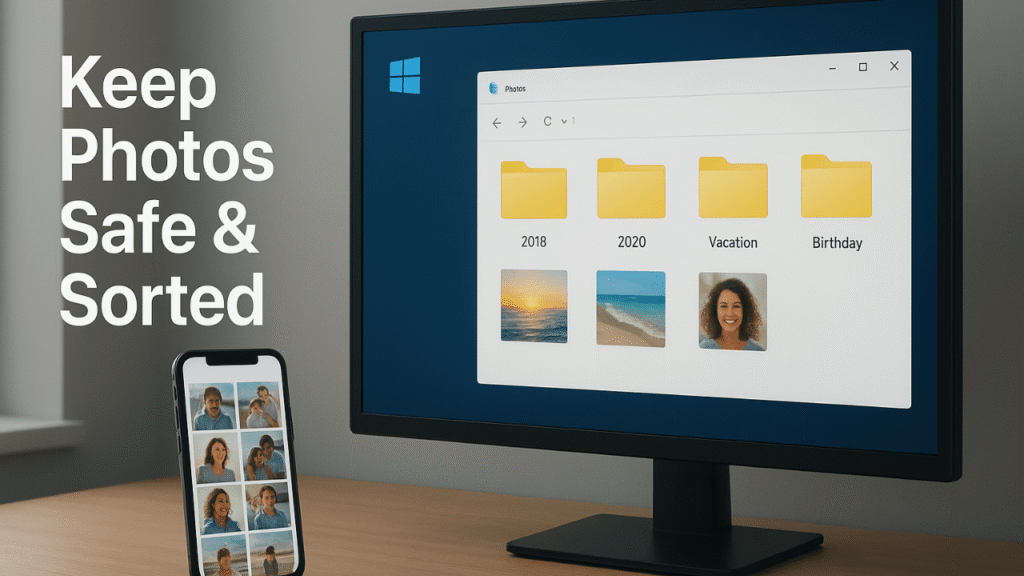
By default, Windows saves imported photos in the Pictures folder, often sorted by date. This location can be changed during import. Knowing how to transfer photo from iPhone to PC computer also means knowing where those files land afterward.
Final Take: Making Photo Transfers a One-Time Learning Curve
how to transfer photo from iPhone to PC computer only feels hard the first time. Once the ecosystem logic clicks, the process becomes muscle memory. Frustration fades when expectations align with system behavior.
The key is intentional choice, not trial and error. Each method exists for a reason. Master one that fits your workflow.
After that, transfers stop being tasks. They become habits.
Learning how to transfer photo from iPhone to PC computer once removes friction for years to come.
Turning a frustrating task into a smooth habit
Consistency, preparation, and method choice eliminate repeated problems permanently.
2 thoughts on “Stop Fighting Your iPhone: Move Photos to a PC the Right Way”
Comments are closed.