
The moment someone learns how to take a screenshot on an HP laptop, the entire digital world becomes easier to navigate. Suddenly, instructions become clearer, errors become explainable, and ideas become shareable with a single tap. What makes screenshot mastery so interesting is that it’s simple on the surface, yet surprisingly powerful once you understand how each shortcut fits different real-life situations. Whether you’re saving a fleeting webpage, recording a glitch, or archiving something important before it disappears, screenshots are proof, memory, and productivity rolled into one. This guide shows you how to take a screenshot on an HP laptop in ways that feel intentional, fast, and almost effortless.
Once you understand the purpose behind each method, the shortcuts stop feeling random and start functioning like tools you can rely on. The beauty is that HP laptops, paired with Windows, offer more screenshot options than most people ever use. And each one solves a different problem—speed, accuracy, file format, or workflow. With just a little awareness, you can shift from “taking screenshots” to capturing information with precision and confidence.
The Fastest Way to Take a Screenshot on an HP Laptop
People often panic when they need a screenshot immediately, but knowing how to take a screenshot on an HP laptop means recognizing that some shortcuts are built for pure speed. The quickest method is still the classic PrtSc key, which grabs everything instantly. When time is tight—like capturing a disappearing message or receipt—this shortcut delivers without extra steps. You paste it and move on. It’s the kind of simplicity that saves you when every second matters.
How to Capture a Specific Area Without Editing Later
Precise screenshots start with understanding how to take a screenshot on an HP laptop in a more controlled way. The moment you hit Windows + Shift + S, the screen dims and gives you freedom to draw the exact capture area. This eliminates the need to crop later, which is a huge time-saver. It also means every screenshot remains clean and focused. Selective snipping is perfect for tutorials, error messages, or anything that doesn’t need visual clutter around it.
Saving Full-Screen Images Automatically (Hands-Free Method)
Sometimes the smartest move is not interrupting your workflow, which ties directly to how to take a screenshot on an HP laptop with minimal disruption. Windows + PrtSc automatically saves a full image straight to your Pictures folder. No editors, no popups, no copying. This method is ideal for full-window captures like gaming, dashboards, or anything that must be preserved exactly as seen. It’s a silent, efficient way to archive your screen without breaking focus.
Hidden Windows Tools HP Users Don’t Know About
Tapping into overlooked features is part of mastering how to take a screenshot on an HP laptop at a deeper level. Tools like Snip & Sketch and the older Snipping Tool come with modes many users skip—such as delayed capture or rectangular snip presets. These tools can time your screenshot or let you adjust shapes for cleaner visuals. Once you explore these hidden capabilities, screenshots start looking more professional with very little effort.
How to Save Screenshots in Different Formats (PNG/JPG/PDF)
Controlling formats is essential when refining how to take a screenshot on an HP laptop for work or documentation. PNG offers sharper detail, while JPG compresses the file for lighter sharing. Some tools even let you convert screenshots to PDFs instantly. Knowing which format fits the moment makes your captures more purposeful and easier to share. This small detail can elevate your workflow dramatically.
Troubleshooting Screenshot Shortcuts That Stop Working
When shortcuts fail, most users panic, forgetting how important knowing how to take a screenshot on an HP laptop is to their tasks. Usually the fix is simple: check the keyboard drivers, disable background programs that override shortcuts, or reset Snip & Sketch. Screenshots tend to break after Windows updates, but these problems are minor once you know where to look. Troubleshooting becomes quick and predictable.
Pro Tips for Faster Workflow Using Screen Snips
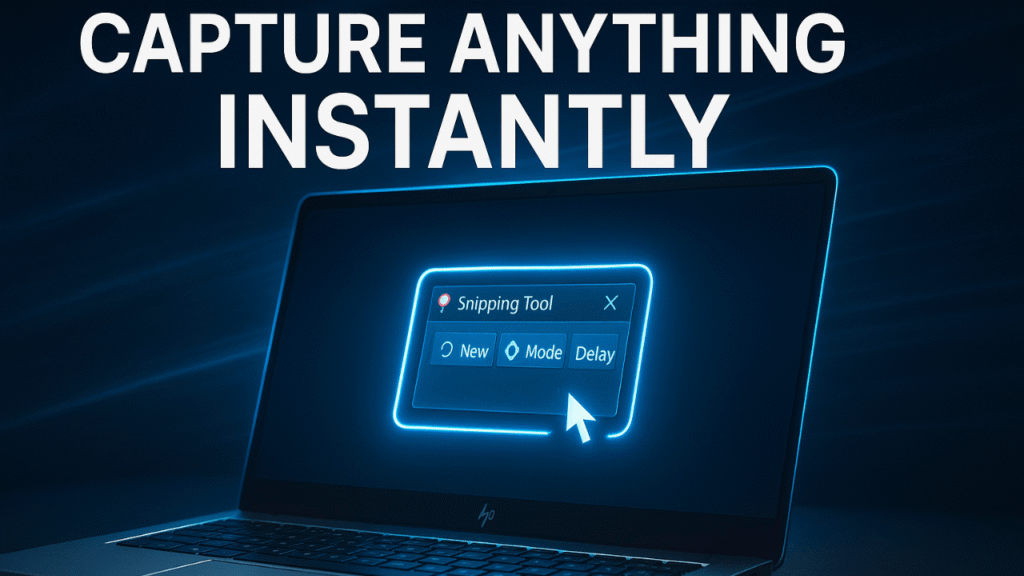
A smoother workflow starts with improving how to take a screenshot on an HP laptop using snipping tools strategically. Pinned Snip & Sketch, customizable snip modes, and in-app markup tools can cut your steps in half. Adding arrows, highlights, or labels right after capture keeps your momentum steady. Once you master this flow, screenshots become part of a seamless creative or work process.
Best Third-Party Tools for Advanced Screenshot Needs
Some tasks demand more than built-in tools, especially when refining how to take a screenshot on an HP laptop for tutorials or professional content. Apps like Lightshot, Greenshot, or ShareX offer instant editing and cloud sharing options. They also support annotations that look cleaner than Paint or Snip & Sketch. Advanced users often switch because these tools turn screenshots into polished, ready-to-send visuals.
When You Shouldn’t Use Screenshots (Security & Privacy Tips)
Knowing boundaries is as important as knowing how to take a screenshot on an HP laptop. Screenshots can accidentally expose logins, private messages, or account details. Before capturing and sharing anything, consider what appears in the background. With awareness, screenshots remain useful without becoming risky.
Simple, Smart, and Fast Ways to Take Screenshots on Your HP Laptop
The beauty of learning how to take a screenshot on an HP laptop is realizing how much easier life becomes when you choose the right shortcut for the right moment. Fast methods handle emergencies, selective tools create clarity, and instant-save options keep your workflow uninterrupted. It’s not just about capturing a screen—it’s about capturing it intelligently. The smartest screenshot habits form naturally once you see how each method solves a specific real-life issue.
Mastering these techniques gives you a sense of control over your digital environment. Screenshots stop feeling like quick snapshots and start functioning as digital notes, instructions, reminders, and visual receipts. When you rethink how to take a screenshot on an HP laptop, you unlock a smoother daily workflow that quietly saves time and reduces frustration.
The Real Reason People Miss the Right Screenshot Shortcut
Most users rely on the first method they learned, not realizing how to take a screenshot on an HP laptop depends on context. Because of habit, they overlook faster or cleaner shortcuts. This leads to cluttered screenshots or unnecessary editing. Once you break that habit, capturing the right image becomes almost intuitive.
How to Take a Screenshot on an HP Laptop in Under 1 Second
Speed becomes crucial when you need evidence quickly, making the fastest trick for how to take a screenshot on an HP laptop essential. The PrtSc key is the one-tap solution most users forget. Press it at the right moment, and you instantly freeze whatever’s on screen. It’s shockingly reliable when something is disappearing fast.
Capture Only What Matters: Area Snip & Window Snip
Precision is underrated, especially when deciding how to take a screenshot on an HP laptop with clarity. The area snip lets you highlight exactly what belongs in the frame. Window Snip isolates one window without showing clutter behind it. These selective methods keep your visuals clean and easy to understand.
Auto-Save Screenshots Without Switching Windows
Efficiency grows when you understand how to take a screenshot on an HP laptop using automatic save functions. With Windows + PrtSc, the image goes straight to your screenshot folder. This shortcut prevents distractions and keeps your hands on the keyboard. For busy users, it’s a silent productivity boost.
Screenshot Tricks for Work, Gaming, and Online Classes
Different situations require different approaches to how to take a screenshot on an HP laptop. Work demands clarity and consistency. Gaming demands speed. Classes demand accuracy for notes or slides. Switching shortcuts based on the moment keeps your captures purposeful and clean.
How to Edit Screenshots Instantly Without Opening Paint
Modern Windows tools change the editing game for how to take a screenshot on an HP laptop. Snip & Sketch opens right after capture with markup tools ready. You can blur, highlight, draw, or annotate within seconds. No extra apps required.
Solving Screenshot Issues After Windows Updates
Updates sometimes disrupt how to take a screenshot on an HP laptop, but the fix is usually simple. Resetting Snip & Sketch or checking keyboard drivers often resolves it. Conflicting background apps can also interfere with shortcuts. A quick settings check usually brings everything back to normal.
Expert Hacks to Stay Organized With Your Screenshot Folder
Once you take screenshots frequently, organization becomes part of mastering how to take a screenshot on an HP laptop. Renaming files immediately keeps your folder clean. Creating subfolders by topic or project saves future frustration. This small habit pays off over time.
How to Take a Screenshot on an HP Laptop—Complete Guide With Secret Shortcuts
Understanding how to take a screenshot on an HP laptop in a more strategic way means going beyond the basics and learning shortcuts most people overlook. The familiar keys are just the surface—hidden features and clever techniques make capturing screens feel almost effortless. When you combine speed, stealth, and precision, screenshots evolve into a more powerful toolset that fits creative work, troubleshooting, and everyday tasks.
This deeper approach helps you navigate your screen with a sense of mastery. Once you internalize how to take a screenshot on an HP laptop using smarter shortcuts, you handle information with more agility. You capture faster, share cleaner, and work more fluently across apps.
Why Every HP User Should Master Screenshot Shortcuts
Knowledge gives you speed, and understanding how to take a screenshot on an HP laptop gives you flexibility. Screenshots simplify complicated tasks, preserve information, and eliminate misunderstandings. When your shortcuts become muscle memory, you stop hesitating. Screens capture exactly what you need, exactly when you need it.
Full Screen vs. Selective Screenshots: Which One Should You Use?
Choosing between methods is part of mastering how to take a screenshot on an HP laptop effectively. Full-screen captures are better when context matters. Selective captures are cleaner when focus matters. Once you know the difference, your visuals become intentional instead of accidental.
The Silent Shortcut Everyone Should Know (No Notifications)
Quiet captures make learning how to take a screenshot on an HP laptop more discreet. Windows + PrtSc saves instantly without any pop-up. This helps during calls, meetings, or recordings. It’s subtle but powerful.
How to Screenshot When Your Keyboard Isn’t Working
Even with hardware issues, understanding how to take a screenshot on an HP laptop keeps you in control. On-screen keyboards, Snip & Sketch, and built-in accessibility tools can replace physical keys. These backup methods are lifesavers when your device misbehaves.
Screenshot Tools Built Into HP Laptops You’ve Probably Ignored
Windows includes tools many forget when thinking about how to take a screenshot on an HP laptop. Delay functions, free-form snips, and quick-edit tools all streamline the process. These small features improve your results dramatically.
Turning Screenshots Into Tutorials, Proof, and Saved Content
Screenshots take on new meaning when you explore how to take a screenshot on an HP laptop for content creation. They form the backbone of guides, troubleshooting steps, and digital receipts. Organized correctly, they become a permanent reference library.
Best Free Alternatives to Snipping Tool for HP Users
Third-party apps expand how to take a screenshot on an HP laptop beyond built-in limits. Tools like ShareX or Greenshot make capturing advanced, annotated, or scrolling screenshots easier. The extra flexibility is worth exploring.
How to Keep Your Screenshots Secure and Organized
Security becomes essential when you fully understand how to take a screenshot on an HP laptop. Renaming files, storing them in private folders, and hiding sensitive info helps prevent accidental leaks. Good habits keep your data safe.
Mastering Screenshots on HP Laptops—Fast, Clean, and Professional
Taking screenshots becomes far more effective when you rethink how to take a screenshot on an HP laptop through a professional lens. When clarity, speed, and presentation matter, small improvements transform average captures into polished digital assets. Professionals rely on visuals that look intentional, accurate, and distraction-free—qualities that come naturally once you choose the right method for each situation.
The more you refine how to take a screenshot on an HP laptop, the more control you gain over your digital communication. Consistency, precision, and workflow optimization turn screenshots into a reliable part of your everyday toolkit.
The Scenario-Based Approach to Screenshot Methods
Different tasks demand different solutions, which is key to knowing how to take a screenshot on an HP laptop efficiently. Tutorials require clarity, troubleshooting requires accuracy, and creative work requires clean framing. Adapting your method for each scenario ensures your screenshots always match your goals.
One-Key Screenshot Tricks Every HP Owner Should Try
Simplicity becomes valuable when using how to take a screenshot on an HP laptop quickly. A single tap of PrtSc can solve countless problems. It works instantly, requires zero setup, and delivers results when speed matters. That one key is often the hero.
The Cleanest Way to Capture a Window Without Background Mess
Window snips elevate how to take a screenshot on an HP laptop by focusing on what matters. They remove desktop icons, tabs, and unwanted clutter. When presenting something professionally, this method keeps your visuals sharp and distraction-free.
Instant Save vs. Manual Save—Which One Works Better?
Your workflow often determines how to take a screenshot on an HP laptop most effectively. Manual captures offer editing flexibility. Automatic captures prioritize speed and organization. Understanding when to use each shortcut keeps your pace smooth.
How to Create High-Quality Screenshots for Work Projects
Work-related visuals benefit from thoughtful use of how to take a screenshot on an HP laptop. Clean formatting, proper framing, and quick editing can transform simple captures into professional assets. Precision becomes a habit.
HP Laptop Screenshots Fail, and How to Fix Them
Even the most reliable shortcuts glitch occasionally, affecting how to take a screenshot on an HP laptop. The fix usually lies in checking background apps, resetting Snip & Sketch, or updating your keyboard drivers. Problems rarely last long once you identify the cause.
Speed Workflow Tips for Bloggers, Students, and Professionals
A smooth routine enhances how to take a screenshot on an HP laptop for high-output tasks. Editing quickly, naming files immediately, and using presets keeps your work efficient. Over time, these small habits save hours.
How to Take a Screenshot on an HP Laptop—Everything You Wish You Knew Earlier
Mastering how to take a screenshot on an HP laptop earlier could save countless hours of confusion, editing, and repetitive work. The moment you discover the smarter paths—like selective snipping, auto-saving folders, instant markup tools, and advanced shortcuts—you realize how much time you’ve been losing to inefficient habits. This section uncovers the overlooked tactics that make screenshot-taking feel smooth, modern, and incredibly satisfying.
When you understand how to take a screenshot on an HP laptop with these deeper techniques, screenshots evolve from simple captures into precise digital tools. They enhance your productivity, strengthen your communication, and make every visual interaction more intentional.
The New User’s Quick Start Screenshot Cheat Sheet
Every beginner should learn how to take a screenshot on an HP laptop by mastering just a few essential shortcuts. These basics set the foundation for more advanced methods later. Once learned, they stay with you—useful in school, work, and daily browsing. Simplicity is the first step toward mastery.
How to Take a Screenshot During Videos, Calls, or Meetings
Capturing moving or live content requires understanding how to take a screenshot on an HP laptop under pressure. Timing becomes crucial. Quick shortcuts like PrtSc or Windows + PrtSc help freeze fast-changing frames. They work reliably without disturbing the session.
Selective Snipping for Error Reporting and Tech Support
Accuracy matters when explaining issues, which makes selective methods ideal for how to take a screenshot on an HP laptop. Capturing just the relevant part keeps support teams focused. It removes confusion and speeds up the troubleshooting process.
Screenshot Automation: Save Time With Built-In Tools
Automation changes how to take a screenshot on an HP laptop forever. Automatic-save shortcuts reduce interruptions dramatically. Once you use them consistently, your workflow becomes noticeably smoother.
Do More With Screenshots: Markups, Blur, Highlights
Editing tools amplify how to take a screenshot on an HP laptop by turning simple images into clear communication. Adding highlights or blur helps draw attention or protect sensitive data. Markups transform screenshots into ready-to-share visuals.
Common Mistakes HP Users Make (And How to Avoid Them)
Misusing shortcuts can limit how to take a screenshot on an HP laptop effectively. Some users capture too much, save in poor formats, or forget to organize their files. A few small changes can make the process far more streamlined.
Screenshot Alternatives: Screen Recording, Clipping, and More
Sometimes screenshots aren’t enough, which expands how to take a screenshot on an HP laptop into other visual tools. Screen recordings and clipping tools help capture movement or longer instructions. They complement your screenshot habits perfectly.
FAQ: How to Take a Screenshot on an HP Laptop
Q1: What’s the quickest way to take a screenshot on an HP laptop?
Press the PrtSc key to capture instantly.
Q2: Where are my screenshots saved automatically?
They appear in the Pictures > Screenshots folder.
Q3: How do I capture only part of the screen?
Use Windows + Shift + S to select the exact area.
Q4: Why isn’t my screenshot shortcut working?
A background app or outdated keyboard driver is likely blocking it.
Q5: How do I take a screenshot without a keyboard?
Use the On-Screen Keyboard or Snip & Sketch.
Q6: What format do screenshots save in by default?
Most HP laptops save screenshots as PNG files.
5 thoughts on “The Ultimate Guide on How to Take a Screenshot on an HP Laptop (Beginner to Advanced)”
Comments are closed.