
Why Using a Laptop on Bed Causes Overheating (And How to Prevent It)
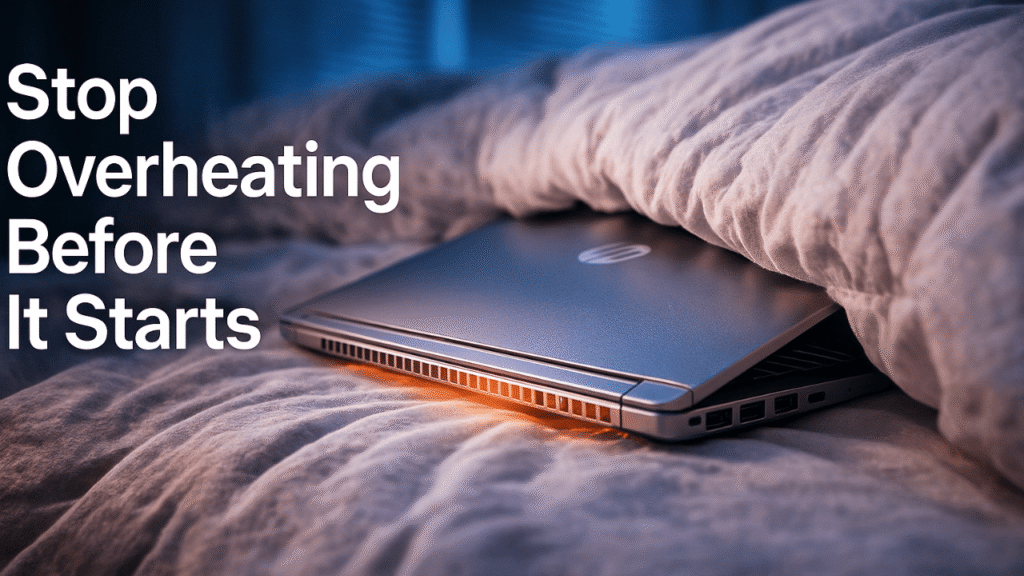
Using an HP laptop on a bed instantly changes how heat moves through the device, and most users don’t realize how quickly temperature spikes begin. Soft fabric traps warm air instead of letting it escape, so the internal fans spin harder while the heat has nowhere to go. That trapped warmth slowly pushes components toward thermal throttling, where performance drops to protect the system. Even simple tasks start feeling heavier, apps lag, and the laptop becomes warm enough to be uncomfortable on your legs.
The challenge with having an HP laptop on a bed is that overheating doesn’t always appear dramatic at first—the decline is slow, subtle, and easy to miss. Preventing it starts with lifting the laptop even half an inch above the blanket, giving the vents a chance to breathe. A cooling pad works even better, providing steady airflow where the fabric would normally suffocate it. Heat is the enemy of long-term performance, and the bed—soft, warm, and silent—creates the perfect trap for it.
Preventing Heat Buildup
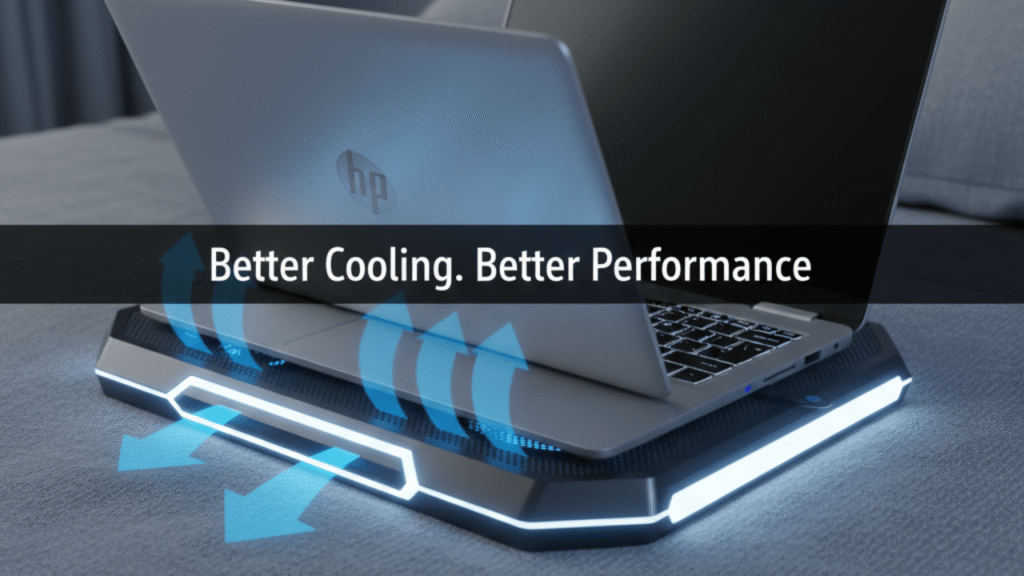
Elevating the laptop makes the biggest difference because it restores a clear airflow path. Cooling pads add active support by pushing fresh air into the chassis instead of letting heat pool underneath. Using a firm surface like a tray or lap desk also stabilizes fan performance and reduces stress on internal components. Even small adjustments lead to noticeably cooler, smoother performance. Your device doesn’t have to suffer just because your workspace is comfortable.
Best Positions for Using a HP Laptop on a Bed Without Causing Back or Neck Pain
Setting an HP laptop on a bed looks comfortable, but the wrong posture can quietly create stiffness you feel hours later. The human body wasn’t built for long sessions of hunching forward or twisting sideways, and the soft mattress exaggerates those angles. Over time, the neck tilts too far, the shoulders rise, and the lower back tries to compensate. That subtle strain builds until it becomes a lingering ache that ruins your productivity.
Positioning an HP laptop on a bed correctly transforms the experience from painful to effortless. A raised screen angle keeps your eyes aligned with the display, while a pillow behind your lower back supports your spine. Keeping your elbows slightly lifted prevents shoulder tension and makes typing far more natural. Comfort is less about softness and more about structure—something most people overlook until discomfort sets in.
Neutral Posture That Protects Your Spine
A neutral spine keeps the natural curve of your back intact while letting your shoulders settle naturally. Elevating your screen prevents the instinctive forward lean that causes neck strain. Keeping your knees slightly bent supports hip alignment and allows your body to relax. Once posture stops fighting your comfort, working on a bed feels easier and less tiring.
How Placing a HP Laptop on a Bed Affects Airflow and Battery Health
Putting an HP laptop on a bed changes how air moves around the machine, and airflow is everything for long-term battery performance. When vents are blocked, internal temperatures rise faster than the system was designed to handle. That heat forces the battery to work harder, draining faster and aging chemically at a quicker pace. The laptop may still function, but the health of the battery quietly slips with each overheated session.
Once an HP laptop on a bed starts running hot repeatedly, the battery controller limits how much power can flow at once. This leads to sudden percentage drops, slower charging, and even unexpected shutdowns. Stable airflow is the easiest way to avoid this kind of stress. Keeping the device lifted or on a stable surface brings temperatures back to normal, giving the battery room to breathe and extending its lifespan.
Why Airflow Matters More Than People Think
Airflow ensures that the laptop’s cooling system doesn’t have to compensate with constant high-speed fan operation. Cooler components create a predictable energy demand that allows the battery to cycle more efficiently. Heat spikes throw everything out of balance, forcing the battery into a high-stress routine. Protecting airflow is protecting longevity—it’s that simple.
Safe Ways to Use an HP Laptop on a Bed Without Damaging the Device
Using an HP laptop on a bed can be perfectly safe when you understand what the machine needs to stay healthy. The biggest threats aren’t always obvious—subtle heat, shifting weight, and soft fabrics can harm the device without any dramatic signs. Hard drives, ports, and hinges all respond differently when the laptop rests on an unstable surface. Even minor compression from a blanket can flex the chassis enough to affect internal alignment.
Handling an HP laptop on a bed safely starts with creating a barrier between the machine and the fabric. A thin tray or lap desk stabilizes weight so the internals stay properly aligned. It also keeps lint and dust from entering the vents, which can accumulate faster on a bed than on a desk. Safety isn’t about avoiding comfort—it’s about giving your laptop a predictable surface to rest on.
Stability Protects Internal Components
A solid base keeps the pressure on the laptop even and prevents twisting during movement. Stable positioning also protects the hinge mechanism from stress caused by soft, shifting surfaces. When the device stays level, the internal cooling system operates exactly as intended. Small precautions go a long way toward preserving performance.
Top Accessories That Make Using HP Laptop on a Bed Comfortable and Risk-Free
Enhancing comfort while using an HP laptop on a bed is easy when the right tools are within reach. Modern accessories are designed specifically to combat the issues that beds create—poor airflow, unstable positioning, and awkward angles. Even simple add-ons can elevate your entire experience without feeling bulky or intrusive. These tools make comfort a choice rather than a gamble.
When an HP laptop on a bed pairs with ergonomic accessories, the workflow becomes smoother and safer. Adjustable lap desks provide a firm base while raising the screen to eye level. Cooling pads restore airflow where fabric blocks heat escape. Wrist cushions and foldable stands eliminate unnecessary strain, creating a more natural workspace.
Accessories That Actually Make a Difference
A raised platform improves ergonomics while protecting the laptop’s underside from heat buildup. Cooling pads add function without sacrificing comfort or mobility. Even lightweight stands can stabilize the device enough to prevent long-term wear. These upgrades quickly pay for themselves in comfort and performance.
Signs Your Laptop Is Suffocating on Soft Surfaces (And What to Do Right Now)
A struggling HP laptop on a bed doesn’t always show dramatic warnings, but the subtle signs are impossible to ignore once you know them. Sudden fan spikes, unexpected slowdowns, and warm spots around the keyboard are early indicators. These symptoms tell you the laptop is fighting to cool itself while the vents remain blocked. Leaving it like this risks long-term hardware stress that won’t fix itself.
When an HP laptop on a bed begins showing signs of overheating, immediate action keeps the damage from escalating. Lifting the device restores airflow instantly. Switching to a flat surface resets temperature levels within minutes. The sooner you react, the better the laptop performs in the long run.
Recognizing Trouble Before It Escalates
Sluggish performance is usually the first warning that heat is stacking inside the chassis. Fans running louder than usual means the cooling system is losing its battle. Warm air coming from unexpected areas signals redirected internal heat. Addressing the issue early protects your hardware and improves performance instantly.

How Dust, Heat, and Blocked Vents Impact Laptop Speed on Soft Surfaces
Placing an HP laptop on a bed exposes the device to dust and trapped heat, two factors that silently erode performance over time. Soft surfaces collect and release particles that drift into the vents with every shift of the blanket. Add restricted airflow, and the laptop begins working harder to maintain normal operating temperature. Over time, this builds residue inside the cooling system, slowing fans and raising internal temperatures.
An HP laptop on a bed that constantly pulls in dust eventually accumulates enough debris to hinder fan efficiency. Heat rises, throttling the processor and making the system feel slower even during light use. Once dust mixes with heat, the decline in speed becomes more noticeable and harder to reverse. Regular cleaning and better airflow prevent this downward spiral before it becomes unmanageable.
Why Dust Is Worse Than You Think
Dust doesn’t just settle—it clings to fan blades and heat sinks, reducing their effectiveness. Higher temperatures force the processor to limit its own power output. Even simple tasks become sluggish when cooling efficiency drops. Keeping dust away is key to keeping your laptop responsive.
Simple Bed Setup Ideas to Improve Laptop Cooling and Stability
Even small changes can transform how an HP laptop on a bed performs, especially when cooling and stability are your priorities. A bed may seem chaotic for electronics, but the right setup creates a controlled environment where airflow thrives. You don’t need expensive gear—just a smarter arrangement that protects the device from heat traps. Stability is the second part of the equation, ensuring the laptop stays level and supported.
Once an HP laptop on a bed is placed on a structured setup, performance becomes noticeably more consistent. A firm board or tray gives the fans room to work. Elevation on one side improves natural airflow and reduces internal pressure. With the right setup, even long sessions feel smooth and uninterrupted.
Creating a Supportive Bed Workspace
A flat surface prevents the laptop from sinking into the mattress and blocking vents. Slight elevation improves heat escape and reduces the strain on internal fans. Even adding a small gap underneath can drastically drop surface temperatures. Cooling becomes effortless when the environment supports it.
FAQ: Using an HP Laptop on Bed Safely & Efficiently
Does using a laptop on a bed really cause overheating?
Yes, a bed traps heat because soft surfaces block the vents underneath the laptop. When air can’t flow freely, the internal temperature rises quickly, causing fans to work harder and components to heat up faster. Over time, this can impact performance and battery health.
Can a laptop get damaged from being used on a blanket or comforter?
It can. Soft fabrics can flex the device’s base, block cooling vents, and allow dust to enter the system. All of these lead to long-term stress on internal components and reduced lifespan.
How can I safely use my laptop on a bed without harming the device?
Using a solid surface—like a tray table, lap desk, cooling pad, or even a hardcover book—keeps the laptop lifted and stable. This preserves airflow and prevents heat from getting trapped underneath.
Why does my laptop fan get loud when I use it on a bed?
The fan is compensating for restricted airflow. When vents are blocked, the internal temperature rises, so the cooling system speeds up to prevent overheating. Loud fans are an early warning sign.
Do cooling pads actually help when using a laptop on a bed?
Yes. Cooling pads push fresh air into the bottom of the laptop and prevent heat from accumulating. They are one of the most effective tools for safe bed-use setups.
Can overheating on a bed affect battery life?
Absolutely. Heat accelerates battery wear, causing faster drain and reducing overall battery health over time. Keeping the device cool is one of the simplest ways to extend battery lifespan.
When to Stop Using a HP Laptop on a Bed: Red Flags You Should Never Ignore
There are moments when an HP laptop on a bed stops being a convenience and starts becoming a risk, and recognizing those moments matters. Constant overheating, unexplained shutdowns, or warping in the chassis signal deeper issues. These aren’t minor inconveniences—they’re warnings that the device is operating outside safe conditions. Ignoring them accelerates wear and shortens the life of the machine.
Knowing when to stop using an HP laptop on a bed helps you protect your data, your hardware, and your performance. A laptop that becomes too hot to touch is already beyond its safe threshold. Sudden lag or battery drain means heat is disrupting internal systems. When the device begins showing multiple red flags at once, moving to a stable surface becomes non-negotiable.
When Comfort Is No Longer Worth the Risk
If the laptop smells unusual or emits excessive heat, internal components may be under stress. Frequent restarts indicate hardware protection measures are kicking in. Even loud, persistent fan noise is a sign that cooling limits are being pushed. Paying attention to these warnings prevents irreversible damage.
1 thought on “Stop the Burn: The Ultimate Guide When Your HP Laptop on a Bed is Overheating”
Comments are closed.