
Dell Monitor Problem – Complete Troubleshooting Guide
A sudden Dell monitor problem hits harder than most people expect because the monitor is the one piece of hardware you never anticipate failing. The moment something looks off—colors shifting, brightness dipping, or a faint flicker appearing—your entire workflow changes. What makes this topic even more important is how quickly small visual cues can snowball into bigger issues. The unusual part is that many failures begin with tiny triggers users overlook. By understanding the earliest signals behind a Dell monitor problem, you can prevent hours of frustration and get ahead of issues before they spread.
What a Dell Monitor Problem Actually Means (Hidden Causes Most Users Miss)
A Dell Monitor Problem often appears simple on the surface, but it can actually stem from deeply hidden causes that most users never even consider. Most users assume display issues are random, but they often come from minor changes inside the system. A slight voltage fluctuation, a temperature spike, or a misconfigured refresh rate can create symptoms that look unrelated. Something as simple as a GPU trying to push a setting the panel isn’t built for can cause sudden instability. Many “mystery glitches” are simply reactions to small, quiet changes in hardware conditions. The sooner these triggers are spotted, the easier they are to reverse.
Quick Visual Checks Before You Touch Any Settings
Sometimes the first clue is something you spot before even turning the system on. A loose tilt, a dusty vent, or a faint smudge on the panel can affect how the monitor behaves. Physical conditions often create problems that appear digital. A poorly seated stand or a slightly bent cable can mimic technical faults you’d never suspect. Looking closely at the device itself can save you from unnecessary troubleshooting later. A Dell Monitor Problem can sometimes be identified instantly through a few smart visual checks before adjusting a single setting.
Cable, Port & Power Issues: The Silent Culprits
A Dell Monitor Problem often traces back to overlooked cable or port issues that quietly disrupt the entire display experience. Most display failures begin where the monitor connects to the system, not inside the panel. A worn HDMI port or aging power adapter can create intermittent signals that look like deep hardware faults. Even small cable pressure from behind a desk can disrupt the connection. These problems escalate gradually, making them harder to catch. A quick swap or repositioning often reveals the truth instantly.
Software Conflicts: Windows Updates, Drivers & GPU Mismatch
A Dell Monitor Problem may also arise from software conflicts that occur when drivers or Windows updates don’t communicate properly with the GPU. Your monitor might be perfectly healthy while the software behind it is not. A single update can change color profiles or reset crucial display configurations. GPU drivers sometimes override manual settings without notifying the user. When hardware and software fall out of sync, the visuals become unpredictable. Understanding that software can break hardware behavior is key to diagnosing modern monitor issues.
Color, Brightness & Flicker Fixes for Every Model
Most color distortions and flickers come from mismatched compatibility settings. Refresh rate conflicts, power-saving modes, and color temperature presets can create instability without warning. Monitors react differently to GPU adjustments, especially when switching between apps. A subtle shift in brightness curves can also trigger flickering during darker scenes. Precise calibration usually restores stability. A Dell Monitor Problem involving color shifts or flicker usually requires simple calibration steps that instantly stabilize the screen.
When the Problem Is the Monitor’s Internal Hardware
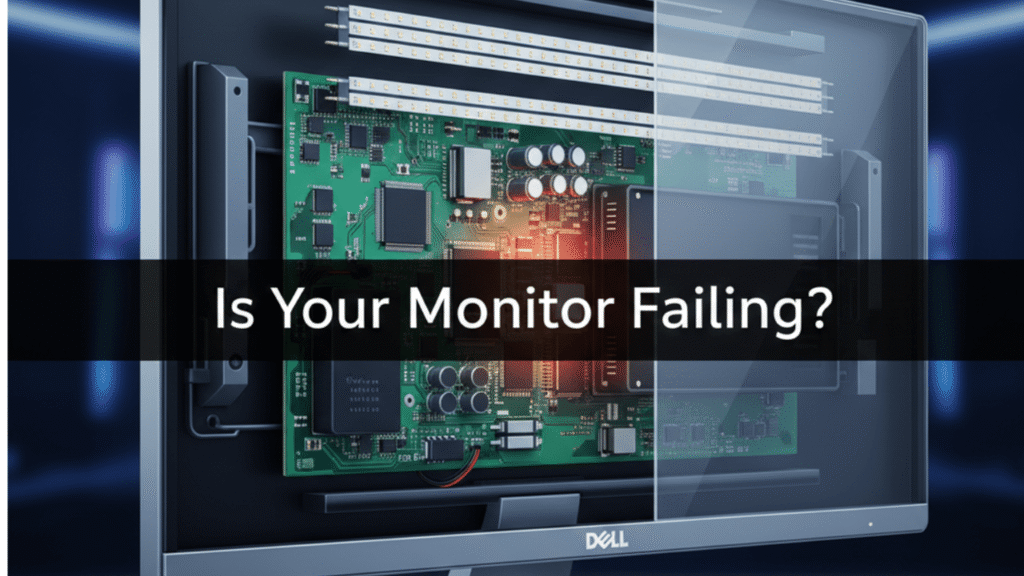
A Dell Monitor Problem tied to internal hardware failures becomes noticeable when symptoms persist even after external adjustments. If external causes are ruled out, the issue may be inside the monitor. Backlights, voltage regulators, and aging capacitors often degrade slowly over time. Heat buildup accelerates this process and causes seemingly random flickers or dark patches. Internal failures usually follow a pattern, even if subtle. Understanding these patterns helps determine whether repair is even worth the cost.
Step-by-Step Diagnostic Flow You Can Do in Under 5 Minutes
A fast diagnostic routine reveals more than people expect. Switching inputs, testing another cable, and checking brightness behavior under different backgrounds tell you exactly where the fault lies. Restarting the GPU pipeline often resets small conflicts instantly. Testing with another device eliminates system-based errors completely. This short process isolates the real cause with surprising accuracy. A Dell Monitor Problem can be narrowed down quickly when you follow a systematic diagnostic flow designed to isolate faults in minutes.
When to Repair, Replace, or Call Dell Support
A Dell Monitor Problem reaches the point of professional support when repeated fixes fail to restore normal display behavior. Some issues are too deep for casual fixes, especially when related to internal voltage or firmware faults. Repairing components like backlights can be costlier than replacing the device. Warranty coverage becomes crucial in these moments. Dell support can access diagnostics unavailable to regular users. Knowing when to escalate saves time and prevents further damage.
Dell Monitor Problem—Why It Happens & How to Fix It Fast
Every Dell monitor problem has a story behind it, and understanding that story turns a confusing issue into something manageable. These problems rarely appear without warning; they leave subtle clues users often overlook. What makes this topic interesting is how different failures share similar symptoms, creating confusion about the real cause. When approached with the right mindset, diagnosing the issue becomes surprisingly simple. By breaking down the patterns behind a Dell monitor problem, you gain control instead of reacting blindly.
Early Warning Signs Your Dell Monitor Is About to Fail
Monitors don’t fail instantly; they fade into failure. Slight warm spots, delayed wake times, or faint brightness fluctuations are early red flags. These changes may seem harmless, but they indicate internal components losing stability. Recognizing these early signs helps prevent complete failure. Acting early often means the difference between a simple fix and an expensive replacement. A Dell Monitor Problem often reveals itself through subtle early warnings such as dim corners or intermittent signal drops.
The Most Common Problems Ranked by Severity
A Dell Monitor Problem tends to fall into predictable categories that become easier to diagnose once severity is ranked. Not all symptoms carry the same weight. A mild color shift might be a temporary configuration glitch, while random power-offs signal deeper electrical issues. Flickering can originate from simple refresh rate conflicts or failing backlights. Understanding severity helps prioritize which problems demand immediate attention. This ranking protects users from misjudging serious faults.
Simple Fixes You Can Try Without Opening Anything
A Dell Monitor Problem can frequently be resolved using basic fixes that require no tools or technical skills. Many users underestimate how many problems can be fixed externally. Resetting display settings, swapping cables, or adjusting power modes can instantly restore stability. Small corrections often have outsized effects on performance. It’s far safer to start with reversible steps before attempting advanced fixes. These simple attempts often solve the issue outright.
Advanced Fixes: Panel, Backlight & Firmware
When basic troubleshooting fails, deeper solutions come into play. Backlight instability is common in aging monitors and often needs professional repair. Firmware updates can resolve long-standing bugs that cause erratic behavior. Panel defects require careful inspection under different lighting conditions. Advanced fixes demand precision but can extend the life of the device significantly. A Dell Monitor Problem sometimes demands advanced steps that target deeper components like the panel, backlight, or firmware.
Preventive Measures to Keep Your Monitor Running for Years
A Dell Monitor Problem can be avoided long-term when preventive care and smart usage habits are consistently followed. Longevity comes from consistent habits, not occasional fixes. Proper ventilation, stable voltage, and periodic calibration reduce long-term stress on the panel. Avoiding extreme brightness levels prevents early degradation of LEDs. Small maintenance routines maintain peak performance. These habits collectively add years to the monitor’s lifespan.
Best Tools & Settings for Long-Term Stability
Calibration tools, stable refresh rates, and well-chosen color profiles create a balanced environment for the display. Accurate settings prevent unnecessary strain on the GPU and monitor. Even simple tools like built-in diagnostics reveal deeper insights. Stability often comes from choosing thoughtful configurations. A few intentional settings can eliminate most recurring issues.
Dell Monitor Problem – Real User Cases & Proven Solutions
Exploring real situations involving a Dell monitor problem reveals how varied the causes can be, even when the symptoms look identical. Users often describe the same glitch but experience entirely different triggers. The interesting part is how one small adjustment can solve what seemed like a major fault. These cases prove that guessing rarely works, but structured evaluation does. By breaking down realistic examples of a Dell monitor problem, solutions become clearer and faster to apply.
The Flickering Screen Case: What Solved It
A user’s screen began flickering only during dark scenes, causing confusion about the source. The issue turned out to be a combination of low brightness and an outdated driver. Raising the brightness slightly stabilized the backlight. Updating the GPU completed the fix. Together, these simple adjustments restored the monitor to normal.
The No-Signal Mystery: Root Cause & Repair
A sudden “no signal” message usually feels catastrophic. In one case, the problem traced back to a stretched cable causing intermittent drops. Replacing it restored a stable connection. Testing alternate ports confirmed the monitor itself was fine. The simplest fix often hides in plain sight.
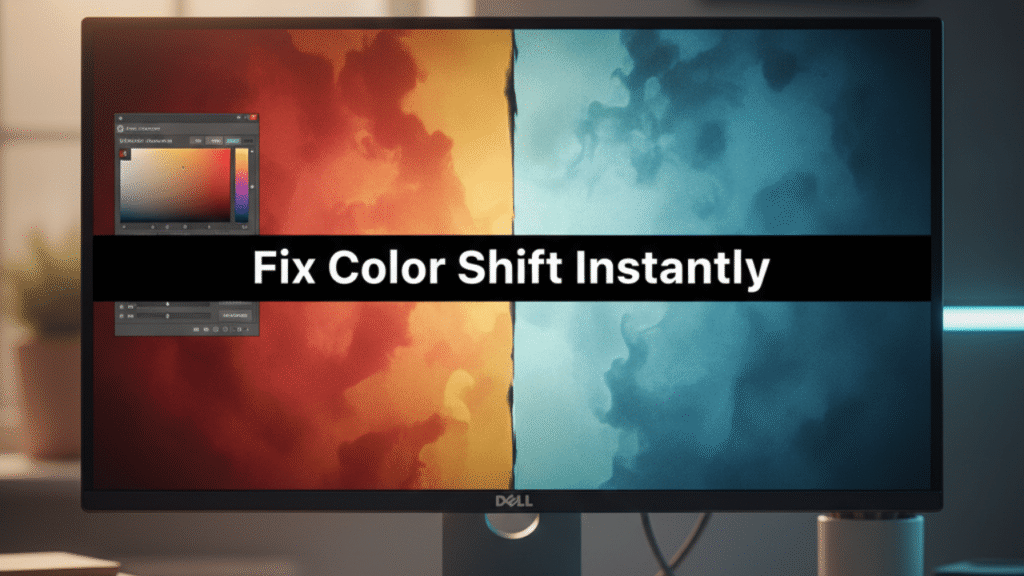
The Color Shift Disaster: Why It Happens
Another user saw their screen turn unexpectedly warm, then suddenly cool. The shift came from a corrupted color profile after a large Windows update. Resetting the profile fixed the tones immediately. Reapplying calibration preserved accuracy. Software interference often masquerades as hardware failure.
The Ghosting & Blurriness Scenario: Real Fixes
Ghosting frustrated a gamer to the point of replacing controllers before realizing the monitor was the culprit. The refresh rate had dropped without warning due to a system update. Restoring the original setting eliminated the issue. Tweaking motion settings improved clarity further. Sometimes one overlooked parameter transforms performance.
How Professionals Diagnose Monitor Issues Differently
Technicians focus on patterns rather than single symptoms. They test multiple inputs, isolate variables, and evaluate heat behavior. Their method reveals problems hidden behind misleading signals. Structured testing prevents unnecessary repairs. This mindset is worth adopting for personal troubleshooting.
Final Checklist for Permanent Resolution
Consistency is the secret to long-term monitor health. Verifying cables, testing ports, checking temperatures, and recalibrating occasionally create stability. This checklist clears recurring issues before they escalate. Routine checks catch early warning signs better than guesswork. The process keeps performance smooth and predictable.
Dell Monitor Problem – Buyer’s Guide for Replacement
When a Dell monitor problem reaches the point of no return, choosing the right replacement becomes the next smart move. Many people make the mistake of replacing their monitor with something similar, only to face the same weaknesses again. The smarter approach is to choose a model that addresses the specific failure you experienced. This method transforms frustration into an informed upgrade. Understanding what caused your Dell monitor problem helps you avoid repeating it with the next device.
When Your Monitor Is Beyond Repair
Some symptoms indicate irreversible hardware decline. Persistent dark spots, burned-in images, or total power failure often point to failing internal circuits. Replacing individual components becomes costlier than buying a new unit. When problems escalate rapidly, the device has reached its limit. Recognizing this saves money and prevents unnecessary repairs.
Top Replacement Options in Each Price Range
Budget monitors now offer impressive color accuracy and stable refresh rates. Mid-range options balance performance with longevity, making them ideal for everyday work. Premium displays deliver pro-level accuracy and advanced motion handling. Choosing based on workload ensures better value. Each tier offers unique advantages for specific users.
Features to Look for If Your Old Monitor Had Frequent Issues
If your previous monitor flickered often, prioritize stable backlighting technologies. If color drift was a recurring issue, look for factory-calibrated displays. Those who faced port reliability problems should choose models with reinforced connectors. Identifying past issues guides future purchases. This targeted approach prevents history from repeating.
Dell vs Other Brands: Reliability Comparison
Dell excels in panel consistency and long-term stability, but other brands compete strongly in brightness and motion performance. Some companies specialize in gaming visuals, while others focus on creative accuracy. Reliability varies by model more than brand. Choosing based on your workload is far more important than loyalty. Each brand has strengths worth considering.
Smart Buying Tips to Avoid Future Problems
Avoid models with aggressive overclocking features if you prefer long-term stability. Look for monitors with strong ventilation and efficient power management. Accurate factory calibration reduces maintenance over time. Reading failure trends helps predict real-world durability. A thoughtful purchase protects your setup for years.
FAQ: Dell Monitor Problem
Q1. Why does my Dell monitor randomly flicker even when cables seem fine?
Flickering often comes from refresh-rate conflicts or brightness levels that push the backlight too hard. Even if cables look perfect, the GPU may be sending unstable settings after an update. Adjusting refresh rate, updating drivers, or raising brightness slightly usually stabilizes the display.
Q2. What causes sudden “No Signal” errors on Dell monitors?
This often happens when the GPU drops the connection for a split second, usually due to a stretched cable or a weakened HDMI/DP port. Sometimes the cable is technically plugged in but not delivering full bandwidth. Switching ports or replacing the cable usually solves it instantly.
Q3. Why did my Dell monitor’s colors change overnight?
Windows updates and GPU drivers frequently overwrite color profiles without warning. If your screen suddenly looks warm, cool, or oversaturated, the profile likely reset. Restoring defaults or reapplying calibration brings the colors back to normal.
Q4. How do I know if my Dell monitor’s backlight is failing?
A fading backlight creates dim patches, uneven brightness, or flicker that worsens at low levels. If these symptoms grow over time, the LEDs are weakening. Once they reach this stage, repair is often more expensive than replacement.
Q5. Should I repair a Dell monitor or just replace it?
Repairing makes sense only when the fault is external—like cables, ports, or settings. If the panel, backlight, or internal circuits are failing, replacement becomes the smarter and more affordable choice.
Q6. How often should I calibrate my Dell monitor?
For regular users, once every few months keeps colors accurate. For editors, designers, and photographers, monthly calibration ensures consistent results across projects. Stable profiles prevent sudden color shifts after updates.
1 thought on “Dell Monitor Problems: Simple Fixes for Flicker, Lines & Display Issues”
Comments are closed.