
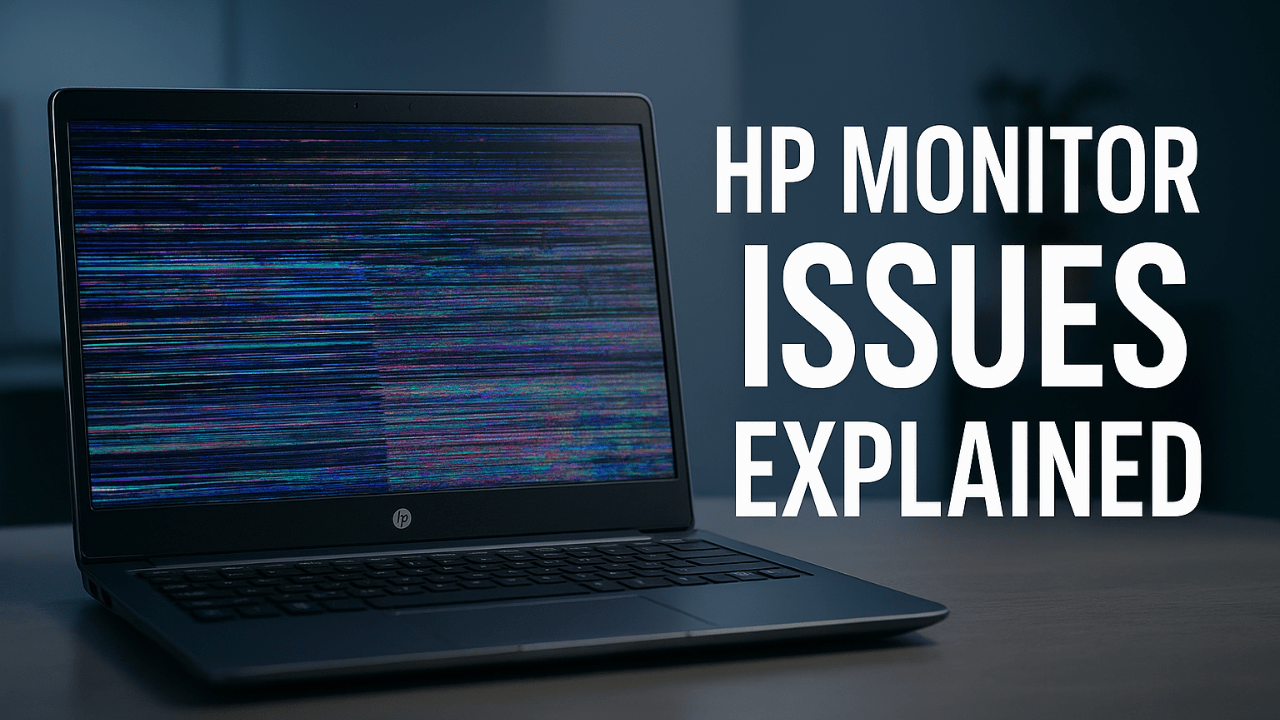
What Causes HP Laptop Monitor Issues? Unexpected Culprits You Shouldn’t Ignore
Technicians often mention that HP laptop monitor issues can be traced back to ignored hardware stress, outdated drivers, or unnoticed physical damage. When HP laptop monitor issues show up out of nowhere, they rarely come from a single dramatic failure. Most problems start with tiny disruptions—an overheated GPU, a weakening backlight, or a cable that shifts out of place after months of hinge pressure. These issues often build quietly in the background, only becoming noticeable when the screen flickers, dulls, or freezes at the worst moment. What surprises many users is that the display isn’t always the part that’s actually failing; sometimes it’s the motherboard or the power delivery system cutting off the panel’s stability mid-task.
A deeper look reveals how environmental factors accelerate HP laptop monitor issues. Dust trapped near the vents can push temperatures higher than the components were designed to handle, causing momentary drop-outs or full blackouts. Even simple things like frequently opening the lid from one corner instead of the center slowly stress the hinges and loosen the display cable over time. And when software updates misalign with older hardware, the graphics system may misfire, producing strange colors or sudden brightness shifts.
Some HP laptop monitor issues come from problems that aren’t visible on the outside, which is why proper diagnostics matter. Many users assume display issues are random, but they often trace back to predictable patterns in how the machine is used, transported, or cooled. Understanding these patterns turns guesswork into clarity—essential when diagnosing problems that don’t leave obvious clues.
Early Warning Signs Your HP Laptop Monitor Is About to Fail
Subtle brightness drops
A screen that dims for a second and then returns to normal isn’t just a quirk; it’s often the backlight struggling to stay consistent. These micro-flickers usually appear long before a full failure. Many users ignore the early changes because they’re brief and easy to miss. But they’re an important signal that the panel’s lighting system is under stress.
Random color shifts
If whites suddenly look warm, or blues appear greenish, the color driver might be slipping. These shifts can happen during video playback or even while scrolling. They usually indicate early-stage graphics pipeline instability. Catching them early helps you avoid bigger problems later.
Slow display response
A slight delay between opening the lid and seeing the screen come to life can hint at deeper electrical or connector issues. This lag is often the display cable hesitating before establishing a full signal. If the delay grows over time, the cable may be wearing out. Addressing it early prevents harsher failures.
Flickering, Lines, or Color Distortion? Decoding HP Laptop Monitor Issues by Symptoms
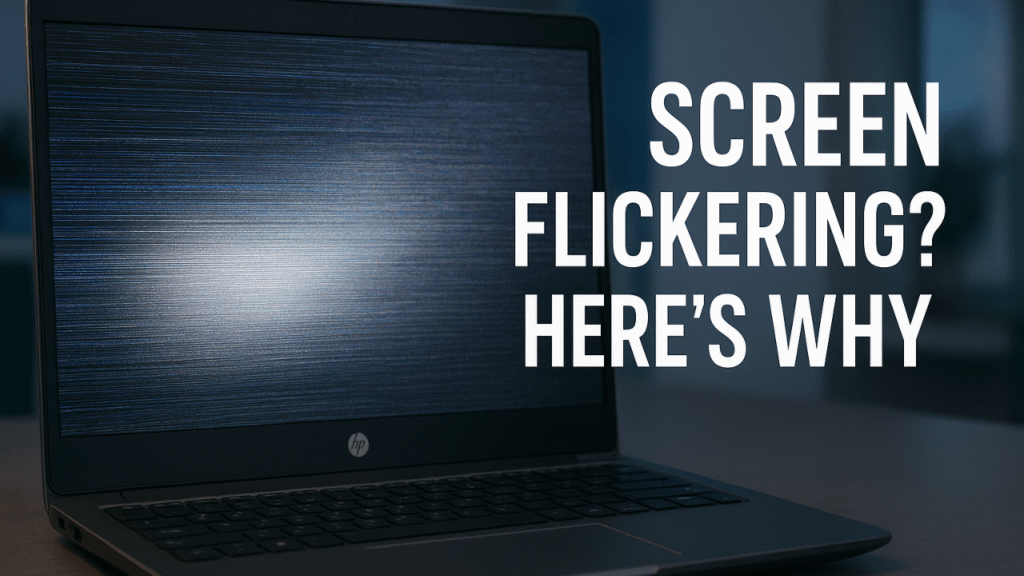
Technicians often mention that HP laptop monitor issues can be traced back to ignored hardware stress, outdated drivers, or unnoticed physical damage. When HP laptop monitor issues reveal themselves through visible distortions, the symptoms operate like a code waiting to be read. Flickering almost always points to a power irregularity—either in the backlight, the cable, or the voltage regulation feeding the display. Horizontal lines suggest damage or stress along the cable’s connection path, usually near the hinge where bending occurs daily. Vertical lines, however, typically originate from deeper panel-level faults where pixel columns stop receiving proper data.
Color distortion offers another layer of insight into ongoing HP laptop monitor issues. When magenta or green tints appear around the edges, it often means the GPU is pushing unstable color channels due to heat or outdated drivers. If the entire display shifts into a washed-out palette, the LVDS or eDP cable may be losing signal integrity. A rainbow effect appearing briefly after waking the laptop points to timing-controller misfires—an early sign the panel is starting to deteriorate.
Each symptom narrows the possibilities and helps you avoid unnecessary repairs. Instead of swapping parts blindly, decoding the visual patterns turns the troubleshooting process into a targeted, informed approach. Understanding what each distortion means gives you the power to act before the display crosses the point of no return.
Hardware vs. Software: How to Tell What’s Really Behind Your Screen Malfunction
When a display suddenly freezes or shows distorted colors, these symptoms often point toward hidden HP laptop monitor issues inside the system.
When drivers are the true culprit
A sudden glitch after an update often stems from software misalignment, not failing hardware. Graphics drivers sometimes push new protocols your older GPU wasn’t ready for. This mismatch can produce flickers or brief freezes. Rolling back drivers instantly reveals if software was the issue.
Temperature-based failures
People usually search for fixes only after HP laptop monitor issues affect daily work, but addressing them earlier prevents costly repairs. If your display only malfunctions after long workloads, heat may be the root cause. Overheating GPUs react unpredictably, producing visual artifacts or brightness drops. Cleaning vents or using cooling pads can stabilize performance. Hardware problems usually worsen with heat, making temperature a strong diagnostic clue.
Static vs. moving anomalies
A static line that never changes suggests a hardware-level failure. But if the glitch shifts location or disappears after rebooting, software is more likely involved. Observing whether the problem is “alive” or fixed in place reveals which path to investigate first. This simple distinction prevents unnecessary repairs.
Hidden Problems Inside the Hinges That Lead to HP Laptop Monitor Failure
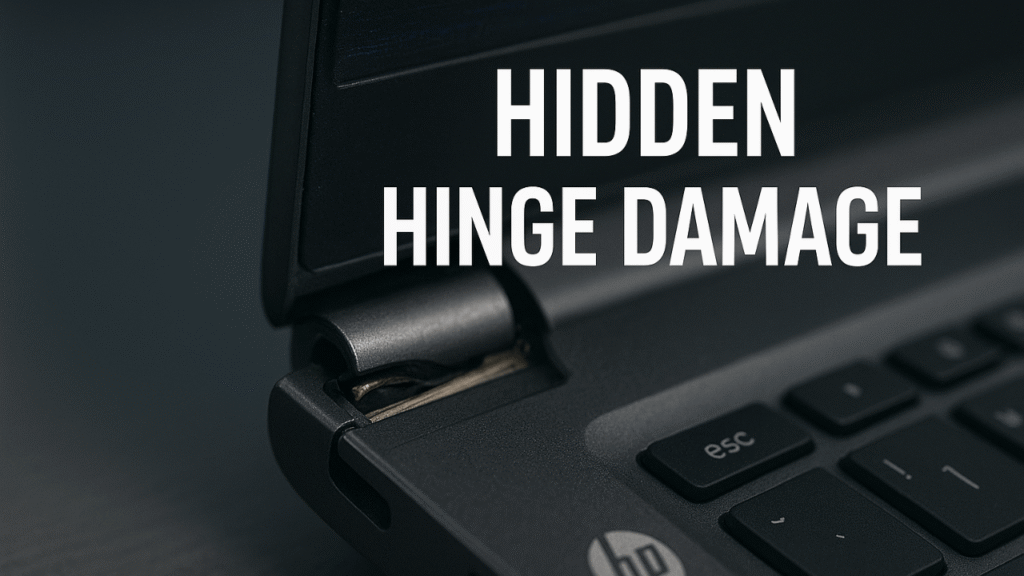
You may not suspect it, but simple overheating can sometimes escalate into serious HP laptop monitor issues that require immediate attention. HP laptop monitor issues often originate from a place most users never consider: the hinge assembly. Inside that narrow space sits the display cable—flexing slightly each time you open or close the lid. Over months or years, this repeated motion frays the cable’s internal wiring, creating intermittent display dropouts, brightness flashes, or total signal loss. Sometimes the hinge becomes stiff or misaligned, pulling the cable tighter than intended and causing micro-tears that mimic GPU failures.
These hinge-driven HP laptop monitor issues become especially noticeable at certain screen angles. You might see the display flicker only when the lid is halfway open, or you may notice color distortion when tilting the screen forward. This angle-based behavior is a key diagnostic sign that the hinge area needs attention. And in many cases, the cable hasn’t fully broken—it’s just strained. A simple reseating or replacement restores full display stability.
Ignoring hinge stress can escalate the problem quickly. A pressured hinge can crack the internal frame, damage the mounting points, or even pinch the cable until it fails entirely. Understanding the hinge’s role helps you catch the problem early and avoid expensive panel replacements.
Driver Conflicts That Trigger Random Screen Glitches in HP Laptops
In most cases, HP laptop monitor issues appear without warning, making it difficult for people to understand what triggered the screen malfunction.
The aftermath of forced updates
Windows updates sometimes install drivers that aren’t optimized for your hardware. This mismatch produces random screen flickers or slow transitions. Reverting to a stable driver often brings instant relief. Keeping a record of working versions helps prevent future conflicts.
Competing graphics controls
Some HP laptops use both integrated and dedicated GPUs. When their control centers clash, display anomalies appear without warning. Switching to a single GPU mode can stabilize performance. Identifying which GPU the system prefers is key to long-term stability.
Corrupted profile files
Occasionally, the color-profile settings stored in the OS become corrupted. This leads to strange tones or inconsistent brightness. Resetting the profile forces the system to rebuild fresh settings. The fix takes seconds but solves issues that appear far more serious.
Loose Cables & Failing Connectors: The Silent Cause of Monitor Trouble
Loose connectors are one of the most underestimated causes of HP laptop monitor issues. The display cable—responsible for carrying every pixel your eyes see—can loosen after years of vibration, hinge movement, or physical handling. When it slips even slightly, the signal becomes unstable, leading to flickers, ghosting, or gray patches that appear unpredictably. What makes this issue tricky is its inconsistency; the display may work flawlessly one moment and fail dramatically the next.
These unstable HP laptop monitor issues often mimic GPU or panel failures. Users assume something expensive is broken when the real culprit is a cable that needs five minutes of reseating. The connector on the motherboard can also oxidize over time, creating micro-gaps that disrupt the signal. Reseating or cleaning the connection point restores clarity instantly. And because cables are inexpensive compared to screens, identifying this early can save significant repair costs.
A failing connector leaves subtle clues: screen distortion when adjusting the lid, brief blackouts when typing hard, or color shifts after moving the laptop. Recognizing these signals helps you separate simple fixes from complex ones—turning a mysterious malfunction into a straightforward hardware adjustment.
Step-by-Step Fixes for Common HP Laptop Monitor Issues
It becomes easier to troubleshoot once you understand that HP laptop monitor issues rarely have a single cause—they often involve multiple factors.
Isolating the power source
A flaky power connection can mimic display malfunctions. Testing the laptop on battery-only vs. charger-only instantly reveals whether voltage inconsistencies are involved. If the issue disappears on battery, the charger may be unstable. Replacing it prevents further damage.
Resetting the graphics pipeline
A full graphics reset clears cached display data that may be causing visual artifacts. Using built-in reset commands forces the GPU to rebuild stable output instructions. This often eliminates small glitches instantly. It’s a fast first step before assuming a deeper issue.
Checking the lid angle reaction
Adjusting the lid slightly while watching for flickers helps identify hinge or cable problems. If the display reacts to movement, the issue is almost certainly physical, not software-driven. This simple test narrows your troubleshooting path. It saves time and avoids unnecessary reinstallations. Many users don’t realize that HP laptop monitor issues often start as tiny glitches that gradually turn into bigger display failures.
FAQ: HP Laptop Monitor Issues
Q1: Why does my HP laptop screen flicker only sometimes?
Intermittent flickering usually means the display cable is starting to loosen or strain near the hinges. When the lid is positioned at certain angles, the cable momentarily loses signal, causing brief flickers. It can also happen from outdated graphics drivers or power fluctuations, but angle-based flickering almost always suggests a physical connection issue.
Q2: Can overheating cause HP laptop monitor problems?
Yes. When the GPU or voltage regulators get too hot, the screen may dim, freeze, or show colored artifacts. Heat disrupts the signal between the graphics processor and the display panel. Cleaning the vents and improving airflow often stops these symptoms quickly.
Q3: How do I know if the display panel itself is damaged?
If you see permanent lines, dead pixel clusters, or static discoloration that doesn’t move or disappear after rebooting, the panel is likely failing. Panel damage stays in the same spot no matter what apps or drivers you use.
Q4: Why does my screen work on an external monitor but not on the laptop?
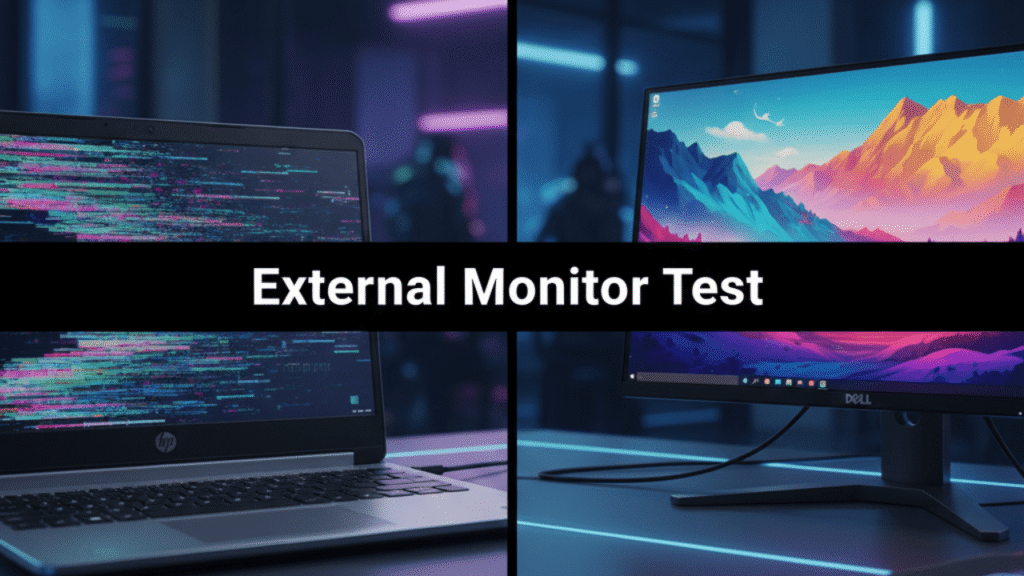
When the external display is perfect, the GPU is fine. The problem is almost certainly inside the laptop—usually the display cable, hinges, or the panel. This is one of the fastest ways to pinpoint internal display failures.
Q5: Are software updates able to cause monitor issues?
Yes. A mismatched or unstable graphics driver can create color shifts, flickers, and stutters. Rolling back to a previous stable driver often resolves the issue immediately.
The “External Monitor Test”: What It Reveals About Your HP Display
When the external display works perfectly
If everything looks flawless on an external monitor, your laptop’s GPU is functioning properly. This instantly eliminates major internal failures. It also points strongly toward a cable, hinge, or panel issue. This single test can save hours of guesswork.
When both screens show the same glitch
If the exact distortion appears on both displays, the graphics system needs attention. This could be a driver conflict or a GPU hardware issue. Updating or rolling back drivers often resolves it. If not, deeper diagnostics are required.
When external output fails completely
A dead external output suggests a severe GPU or motherboard malfunction. The system may be failing to route video signals altogether. This type of failure usually requires professional repair. Identifying it early helps prevent data loss or full system collapse.