
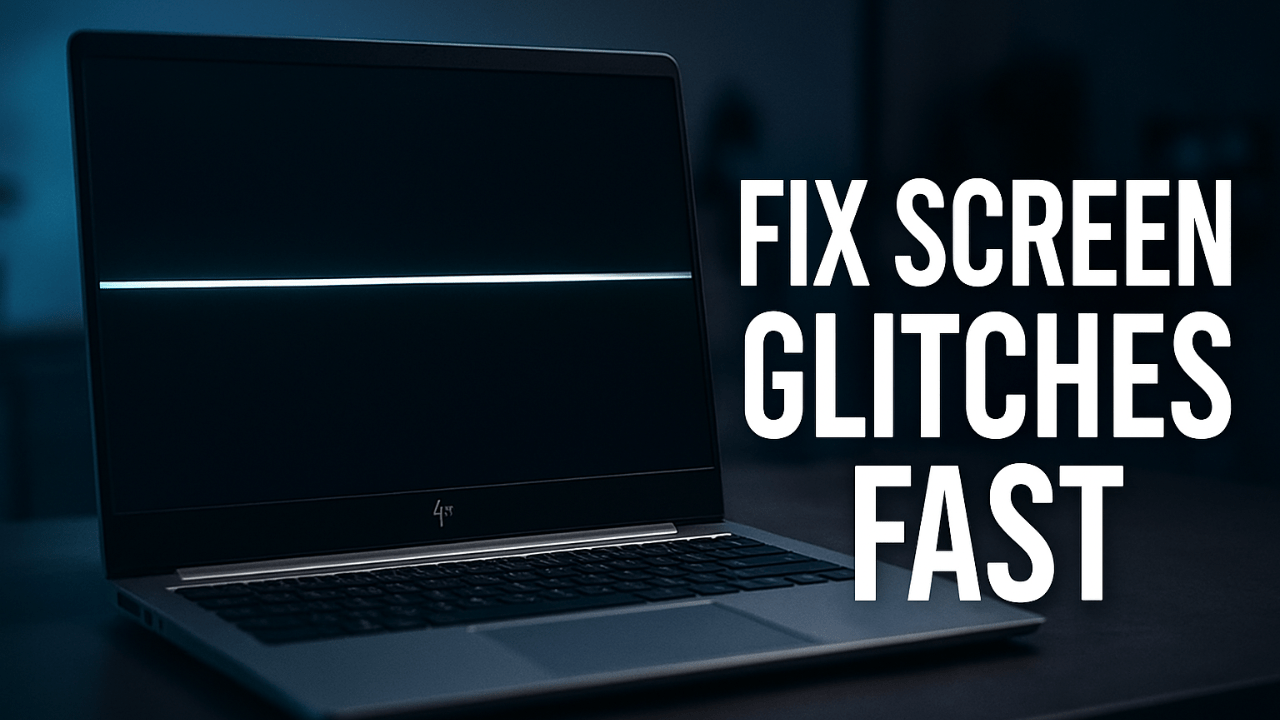
What Causes a Horizontal Line on a Laptop Screen on HP Devices? (Unexpected Reasons Most Users Miss)
A sudden horizontal line on laptop screen HP laptops often feels like a glitch that came out of nowhere, but the truth is more layered. Most lines begin with small stresses inside the device—like a weakening display cable or subtle pressure on the lid that slowly distorts the panel.
Sometimes the line appears after a minor drop, hinge resistance, or even long-term heat buildup. Other times, the GPU misfires and sends corrupted data across the display, creating a line that flickers or stays perfectly still. The frustrating part is how unpredictable this issue feels, yet every line is a clue pointing to a deeper cause. Understanding why a horizontal line on laptop screen HP models appears helps you narrow down whether you’re facing a hardware strain, a loose connection, or an aging screen reaching its limit.
Loose Internal Ribbon Cable
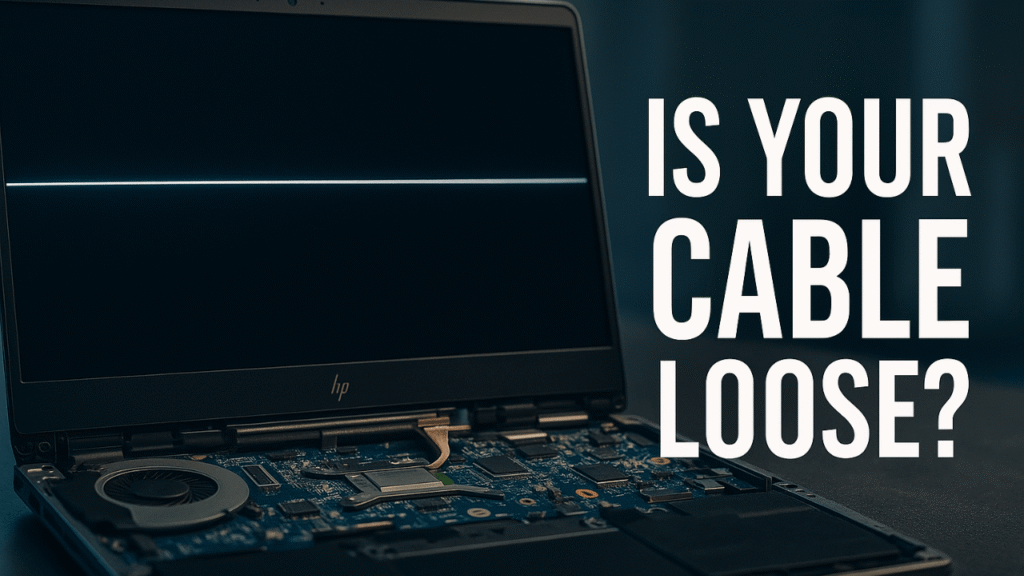
A display cable doesn’t have to break to cause chaos—slight looseness is enough to disrupt the flow of data. Sudden lid movements or long-term hinge wear slowly weaken the connection. When that cable loses contact for even a split second, the panel responds by showing thin colored or black lines. The line becomes more persistent each time the connection shifts.
Panel Driver Circuit Stress
Inside every HP display lies a network of microscopic chips that regulate pixel behavior. When one of these circuits weakens, the result often appears as a horizontal streak. The failure isn’t random; it’s usually caused by heat, age, or manufacturing fatigue. Once the driver loses efficiency, the line often remains even during a reboot.
Quick Diagnostic Test for a Horizontal Line on Laptop Screen HP Computers
When a horizontal line on laptop screen HP device appears, the fastest way to understand the cause is a simple but revealing test. Start by connecting your HP laptop to an external monitor—if the second display looks perfect, your internal screen is the likely culprit. If the line appears on both screens, the GPU could be struggling.
Next, gently adjust the lid angle; if the line shifts, you’re dealing with a stressed cable. Restarting in BIOS can also offer insight—if the line stays visible there, the issue isn’t software. These tests don’t repair anything, but they cut your guesswork in half. They also make it clearer whether the horizontal line on the laptop screen HP issue needs a cable reseat, a screen replacement, or a deeper hardware check.
External Monitor Test
Mirroring the screen to an external display is the quickest way to separate panel issues from GPU issues. If the external display is clean, the internal panel is failing. If both screens show the same line, the GPU is responsible. Users often skip this step, but it’s one of the most reliable diagnostic shortcuts.
BIOS and Startup Screen Check
If the line appears before Windows loads, it’s not a driver glitch. BIOS display anomalies nearly always point to panel or cable defects. This test bypasses software entirely, giving you an unfiltered view of the hardware’s condition. It’s a simple but powerful way to confirm the root cause.
Hardware vs. Software: Which One Really Triggers the Horizontal Line on the Laptop Screen HP Issue?
A horizontal line on laptop screen HP laptops can come from either a physical failure or a software miscommunication, but knowing which one is responsible makes repair far easier. Software-related causes often show symptoms like flickering, ghost lines, or lines that disappear after a reboot or driver update. Hardware issues behave differently—they’re consistent, unmoving, and often worsen when the screen is pressed or the hinge moves.
BIOS checks help separate the two: if the line appears in BIOS, it’s almost certainly hardware. Software issues usually vanish outside the operating system. GPU-related faults sit in between, affecting everything regardless of mode. Understanding this hardware-versus-software divide transforms the horizontal line on laptop screen HP problem into something diagnosable rather than unpredictable.
Software Indicators
Software-related display issues rarely stay consistent. They flicker, disappear on restart, or change behavior when you adjust resolution or refresh rate. These signs suggest the GPU driver isn’t communicating correctly with the display. Such issues are usually reversible with updates or resets.
Hardware Indicators
Hardware defects show no interest in changing behavior—they remain visible across applications, reboots, and diagnostic screens. Lines caused by damaged cables or failing panels ignore software fixes entirely. If the line appears during BIOS tests, hardware is the unquestionable cause.
The Most Effective Fixes for a Horizontal Line on Laptop Screen: HP Laptops (Proven Solutions)
Fixing a horizontal line on laptop screen HP models start with identifying the exact point of failure, not guessing. If the cable is loose, reseating it often eliminates the line instantly—no replacement needed. For displays damaged by pressure or age, swapping the panel is the most reliable solution. When the GPU is at fault, updating or rolling back drivers can stabilize output, while persistent GPU faults may require professional board-level repair.
Temporary fixes like adjusting the lid angle or reducing brightness help only briefly. The real goal is restoring consistent signal flow between the motherboard and the display. Whether it’s a cable, panel, or GPU, addressing the root cause is the only lasting fix for a horizontal line on laptop screen HP devices.
Driver Reinstallation
Corrupted or outdated graphics drivers can distort the output signal. Reinstalling or updating them restores normal pixel rendering. This fix works best when the line changes or flickers based on screen content. Many HP models respond instantly once the software layer is corrected.
LCD Panel Replacement
When the panel’s internal circuits fail, no amount of software tweaking will restore it. Replacing the screen eliminates the faulty driver chips inside the display. This is a direct, permanent cure for stubborn lines that refuse to react to diagnostics or external monitor tests.

When a Horizontal Line on an HP Laptop Screen Means a Failing Cable or Loose Connector
A horizontal line on laptop screen HP devices often point directly to a failing display cable, especially when the line flickers or changes as you move the lid. Over time, this cable flexes thousands of times, and a single weakened section can interrupt the signal traveling to the panel. A loose connector creates similar symptoms—momentary distortions, unstable colors, or a line that momentarily disappears when the laptop is positioned just right.
The good news is that cable-related problems are among the cheapest to fix and rarely require replacing the entire screen. A proper reseat or cable swap often returns the display to full clarity. When diagnosing a horizontal line on laptop screen HP systems, cable issues should always be checked before assuming something more expensive is wrong.
Symptoms of Cable Stress
A line that flickers, changes color, or moves on its own is often caused by a weakening cable. Adjusting the lid angle may temporarily “fix” the screen. These symptoms are the cable asking for attention before a complete failure occurs.
Connector Misalignment
Even a gentle shock can shift the connector by a fraction of a millimeter. When that happens, the screen loses direct communication with the motherboard. The result is a constant or intermittent visual streak that worsens with time.
Pressure Damage & Hinge Stress: The Silent Causes Behind Horizontal Lines on HP Screens
Sometimes a horizontal line on laptop screen HP laptops develop long before the user notices anything unusual, quietly forming from pressure or hinge stress. Even mild pressure—like stacking books on the laptop lid—can distort the LCD layers enough to create a permanent line. Hinge problems are just as subtle; when they tighten or misalign, they pull the display cable or strain the panel.
The line becomes most visible when opening or closing the laptop, then gradually settles into a constant streak. This type of damage is irreversible, but it’s also preventable with careful handling. Once a horizontal line on laptop screen HP models forms from pressure, replacing the panel is typically the only solution.
Subtle Impact Damage
Minor impacts that seem harmless can disrupt the fragile LCD layers. The effect may not show immediately. But after a few heat cycles, the compromised area reveals itself as a streak across the panel. These cases often go unnoticed until it’s too late.
Hinge Pressure Distortion
A stiff hinge can twist the display frame slightly every time the lid moves. This pressure spreads along the panel’s edge and eventually affects pixel rows. Once those pixels fail, the line stays permanently visible.

How to Tell if GPU or Screen Failure Is Responsible
When a horizontal line on laptop screen HP device appears, the challenge is distinguishing GPU failure from screen failure. GPU faults affect everything the laptop displays—BIOS, external monitors, and screenshots, all showing the same line or distortion. Screen failure, on the other hand, is isolated to the laptop’s internal display and never appears externally.
Another clue lies in behavior: GPU problems often come with freezes, fan surges, or crashes, while a bad panel simply shows a stable, unchanging line. If the line disappears in screenshots, the GPU is fine. Understanding these subtle differences makes diagnosing a horizontal line on an HP laptop screen issue much faster and prevents unnecessary repairs.
GPU Failure Clues
GPU problems rarely create a single simple line. They produce patterns, distortions, or duplicate glitches. They affect both internal and external monitors simultaneously, making them easy to confirm with a simple mirror test.
Screen Failure Clues
A clean, unchanging line contained only on the laptop’s display almost always indicates a panel issue. These failures remain visible across reboots and BIOS screens. They never affect external monitors.
Temporary Workarounds to Keep Using Your HP Laptop When the Horizontal Line Appears
If the horizontal line on laptop screen HP problem appears at the worst possible moment, temporary workarounds can keep your device usable. Adjusting the lid angle often reduces cable-induced lines enough to work comfortably. Using an external monitor sidesteps the internal screen entirely, giving you a full display free of distortion. Lowering brightness can stabilize a failing panel for short sessions. None of these methods solve the underlying issue, but they buy valuable time until a proper repair is possible. When the horizontal line on laptop screen HP defect interrupts productivity, these workarounds help maintain workflow without worsening the damage.
Brightness Adjustments
Lowering brightness reduces pressure on damaged circuits. The line may look softer or less defined. This helps reduce eye strain during long sessions.
External Display Use
A secondary monitor bypasses the damaged screen completely. It offers a flawless workspace instantly. This workaround is ideal for users who need immediate stability.
Professional Repair or DIY? Choosing the Right Path for a Horizontal Line on an HP Laptop Screen
Deciding how to address a horizontal line on laptop screen HP devices depends on the cause and your comfort level. DIY cable reseating is straightforward for users familiar with opening laptops, and it often resolves the issue instantly. Screen replacement is also doable but requires careful handling to avoid additional damage. GPU repairs, however, should always be left to professionals due to the complexity and precision required. Warranty coverage can influence the decision too. Understanding your skills and the severity of the horizontal line on laptop screen HP issue helps you choose the safest, most cost-effective repair path.
When DIY Works
DIY methods work best when the issue is cable-related. Re-seating a loose connector can fix flickering or moving lines. But it requires patience, precision, and proper tools.
When Professional Repair Is Essential
Technicians handle panel replacement, GPU faults, and hinge recalibration with expertise. They prevent accidental damage during disassembly. Their repairs are more reliable and long-lasting.
FAQ: Horizontal Line on Laptop Screen HP
Why is there a horizontal line on my HP laptop screen?
It usually appears due to cable strain, panel damage, or GPU rendering issues.
Can a horizontal line on laptop screen HP be fixed without replacing the display?
Yes, if the cause is a loose cable or software glitch rather than panel failure.
Does a horizontal line mean my HP screen is permanently damaged?
Not always—only consistent, unchanging lines typically indicate permanent damage.
Will connecting an external monitor remove the horizontal line?
It removes the line only if the internal screen is the problem, not if the GPU is failing.
Is it safe to keep using my laptop with a horizontal line on the screen?
Yes, but extended use may worsen cable or hinge-related issues.
Cost Breakdown: How Much You’ll Pay to Fix a Horizontal Line on Laptop Screen HP Devices
Repairing a horizontal line on laptop screen HP laptops can range from inexpensive to moderately costly depending on the source of the problem. Cable reseating or replacement is the cheapest option, often costing very little if done yourself. A new display panel typically sits in the mid-range, depending on model and screen type. GPU-related repairs are the most expensive, since they involve advanced soldering or board replacement. External monitor use is a temporary “free” solution but not a true fix. Knowing the typical price range helps you avoid overpaying and makes the horizontal line on laptop screen HP repair decision clearer.
Cable Repair Costs
Cable reseating is inexpensive and fast. Full cable replacement still falls on the lower end of repair pricing. These repairs often restore perfect display quality without additional parts.
LCD Screen Replacement Costs
Replacing the panel is the mid-tier expense. Costs vary by screen size and resolution, but the result is a brand-new display. For permanent lines, this is the most reliable long-term fix.