
Mobile users abandon slow sites quickly, so every second saved helps improve WordPress mobile page speed and protect organic traffic. Mobile page speed can make or break your tech blog’s success. When readers land on your gadget review expecting instant load times and instead wait 5+ seconds staring at a blank screen, they’re gone—probably to a competitor’s site.
Google’s mobile-first indexing means your site’s mobile performance directly impacts your search rankings. For gadget and tech blogs specifically, this becomes even more critical. Your audience expects fast, responsive experiences because they’re tech-savvy users who won’t tolerate sluggish sites. Plus, tech blogs typically feature high-resolution product images, comparison tables, and embedded videos—all elements that can destroy mobile load times if not properly optimized.
Even small performance tweaks compound over time and can noticeably improve WordPress mobile page speed on content-rich tech blogs. This guide walks you through the exact steps to fix WordPress mobile page speed for tech blogs, with specific solutions for common problems you’ll actually encounter.
Why Mobile Speed Matters More for Tech Blogs
Google’s mobile-first indexing rewards sites that actively improve WordPress mobile page speed with better crawl efficiency. Tech and gadget blogs face unique mobile speed challenges. You’re publishing detailed smartphone reviews with dozens of high-res photos. You’re embedding YouTube unboxing videos. You’re running affiliate scripts from Amazon, Best Buy, and other retailers. You’ve got comparison tables loaded with specifications.
Each of these elements adds weight to your pages. The average tech blog post easily exceeds 3-4 MB in size, which translates to 8-12 second load times on 3G connections. Your readers might be checking your latest phone review while commuting or comparing laptop specs on their tablet. Slow load times mean lost revenue from affiliate clicks and decreased ad impressions.
Optimizing fonts and CSS delivery is another overlooked way to improve WordPress mobile page speed without changing site layout.
Step 1: Test Your Current Mobile Speed
Before making any changes, you need accurate mobile performance data to improve WordPress mobile page speed effectively and avoid fixing the wrong problems.
Google PageSpeed Insights should be your primary tool. Enter your URL and focus exclusively on the mobile score. Anything below 50 is poor, 50-89 needs improvement, and 90+ is good. Pay attention to the “Core Web Vitals” section—these metrics directly affect rankings.
GTmetrix offers mobile testing under the “Test from” dropdown. Select a mobile device profile and run multiple tests from different locations. Tech blogs get international traffic, so test from US, Europe, and Asia servers.
WebPageTest gives the most detailed mobile analysis. Use the “Mobile” preset and set the connection to “3G Fast” or “4G LTE” to simulate real-world conditions. The filmstrip view shows exactly when your content becomes visible.
Run each tool three times and average the results. Mobile speeds fluctuate based on server load and network conditions. Regular performance audits ensure your updates don’t silently undo efforts to improve WordPress mobile page speed.

Step 2: Optimize Images for Mobile Devices
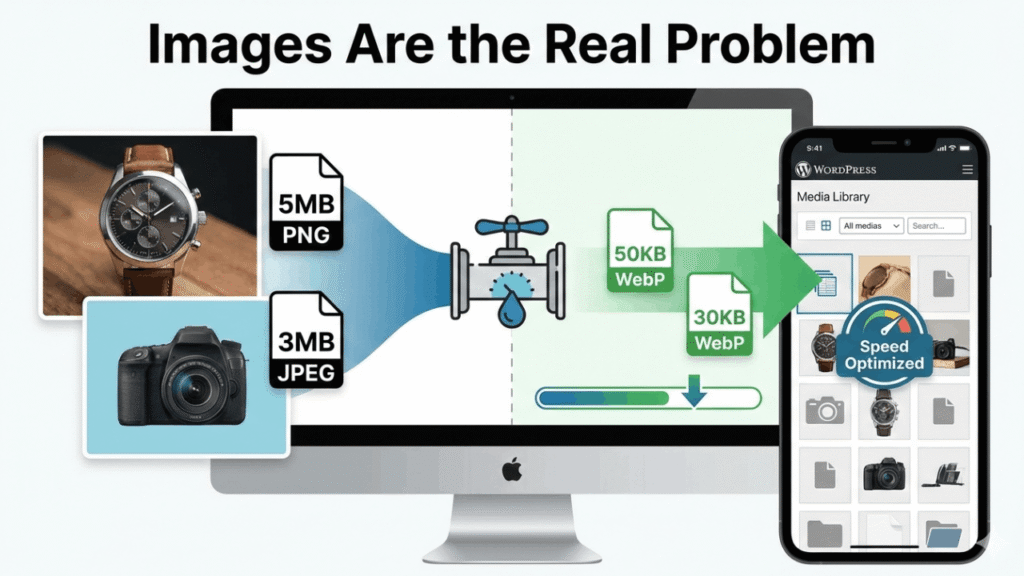
Images kill mobile page speed for tech blogs. A single uncompressed product photo can weigh 5MB. When you’re publishing 15-20 images per review, that’s 75-100 MB of images alone. Large, unoptimized images are the fastest way to kill performance, which is why image compression is critical if you want to improve WordPress mobile page speed on tech blogs.
Convert everything to WebP format.
WebP images are 25-35% smaller than JPEGs with identical visual quality. Install the “WebP Converter for Media” plugin, which automatically converts your entire media library and serves WebP to compatible browsers with JPEG fallbacks.
Implement responsive images properly.
WordPress generates multiple image sizes, but you need to ensure they’re being used. The “Responsify WP” plugin forces WordPress to serve appropriately sized images based on the visitor’s screen size. A mobile user viewing your site on a 400px screen shouldn’t download a 2000px image.
Set maximum image dimensions.
For tech blogs, product photos rarely need to exceed 1200px in width. Install “Imsanity” to automatically resize oversized uploads. This prevents contributors from uploading 4000px screenshots directly from their cameras.
Use lazy loading aggressively.
WordPress includes native lazy loading, but it’s conservative. The “a3 Lazy Load” plugin offers mobile-specific settings and works with your theme’s galleries. Set it to load images only when they’re 200px from entering the viewport.
Compress without quality loss.
Run every image through “ShortPixel” or “Imagify” before publishing. These services use lossy compression that’s imperceptible to readers but cuts file sizes by 40-70%. The paid plans are worth it if you publish daily.
Step 3: Choose a Lightweight, Mobile-Optimized Theme
Choosing a lightweight, mobile-first theme is a foundational step to improve WordPress mobile page speed without relying on excessive plugins. Your theme is the foundation of mobile performance. Many popular tech blog themes are bloated with features you’ll never use—page builders, dozens of widget areas, and complex animation systems.
GeneratePress and Astra consistently deliver the best mobile performance for tech blogs. They load in under 50KB and include only essential features. Both offer excellent mobile customization without requiring a page builder.
Avoid themes that bundle multiple plugins or require Visual Composer/Elementor. These page builders add 500KB-1MB to every page load. If you’re currently using one, switching themes is painful but necessary for serious speed improvements.
Test potential themes on a staging site using the speed testing tools from Step 1. A theme that looks great but scores 40 on mobile PageSpeed isn’t worth using.
Step 4: Implement Aggressive Mobile Caching
Caching stores pre-generated versions of your pages, eliminating the need to rebuild them for every visitor. For mobile speed, you need separate mobile caches because mobile layouts differ from desktop. Proper mobile caching reduces server load and is one of the most reliable methods to improve WordPress mobile page speed consistently.
WP Rocket is the best caching plugin for tech blogs. It automatically creates separate mobile caches, implements lazy loading, and minifies code. The mobile-specific settings let you exclude certain scripts from mobile pages while keeping them on desktop.
Enable these WP Rocket settings for mobile:
- Separate cache for mobile devices
- Preload cache
- Enable lazy loading for images and iframes
- Minify CSS and JavaScript files
- Combine Google Fonts
LiteSpeed Cache is the alternative if you’re on LiteSpeed hosting. It offers similar features and includes mobile-specific CSS and JavaScript optimization. A fast-loading mobile experience builds trust, making it easier to improve WordPress mobile page speed while increasing engagement and conversions.
Set your cache to expire every 24 hours. Tech blogs publish frequently, so you need fresh caches without manually purging after every post.

Step 5: Control Plugins and Scripts on Mobile
Disabling unnecessary plugins and scripts on mobile devices helps improve WordPress mobile page speed by reducing render-blocking resources. Every plugin adds overhead. Tech blogs typically run 25-30 plugins, many loading scripts on every page whether needed or not.
Asset CleanUp lets you disable plugins per page and per device. For example, your “Related Posts” plugin doesn’t need to load on mobile—readers rarely scroll that far. Your contact form scripts only need to load on the contact page, not on product reviews.
Install Asset CleanUp and go through your most-visited posts. Disable any script that isn’t critical for mobile users. Common scripts to disable on mobile:
- Social sharing plugins (mobile users share via native apps)
- Advanced comment systems
- Live chat widgets
- Heatmap and analytics visualizations
- Instagram and Pinterest feeds
Plugin Organizer offers more granular control, letting you set global rules like “disable all social plugins on mobile devices.”
Audit your plugins monthly. Delete any you haven’t configured or used in 60 days. Tech blogs accumulate plugins from testing and forget to remove them.
Step 6: Optimize Mobile Page Speed Through Ads and Affiliate Scripts
Poorly optimized ads and affiliate scripts can undo all your efforts to improve WordPress mobile page speed, especially on content-heavy tech blogs. Monetization scripts destroy mobile speeds. A single ad network can add 3-5 seconds to load times. For tech blogs running Amazon Associates, Impact, and ShareASale links plus Google AdSense or Mediavine ads, this compounds quickly.
Lazy load ads below the fold.
Only your top ad unit needs to load immediately. Use WP Rocket’s “Delay JavaScript Execution” feature to defer ad scripts until user interaction. This dramatically improves initial load metrics while maintaining revenue.
Switch to asynchronous ad loading.
If you’re using AdSense, ensure you’re using the async ad code, not the older synchronous version. For affiliate scripts, load them asynchronously using the async attribute in your script tags.
Limit ad density on mobile.
Three ad units on mobile is the maximum before speeds crater. Yes, this reduces revenue, but a 3-second load time versus 8 seconds means more visitors actually see those three ads.
Use affiliate link cloaking carefully.
Pretty Links and ThirstyAffiliates are convenient but add database queries. If you’re using these plugins, enable their caching options and avoid fancy features like automatic keyword linking.
Step 7: Upgrade Hosting and Reduce TTFB
Upgrading your hosting is often unavoidable if you’re serious about trying to improve WordPress mobile page speed beyond basic optimizations. Time to First Byte (TTFB) measures how quickly your server responds. Shared hosting typically delivers 600-1200 ms TTFB, which is unacceptable for mobile. You’re adding a full second before content even starts loading.
Cloudways and Kinsta consistently deliver sub-200ms TTFB. They use server-level caching and optimized PHP configurations. For tech blogs publishing multiple posts daily, the performance gains justify the higher cost.
If you’re committed to shared hosting, at least move to SiteGround or WP Engine’s entry plans. They offer better infrastructure than typical EIG-owned hosts (Bluehost, HostGator).
Enable HTTP/2 on your server. This allows multiple resources to load simultaneously over a single connection, dramatically improving mobile speeds. Most quality hosts enable this by default, but verify in your hosting dashboard.
Use PHP 8.1 or newer. Older PHP versions (5.6, 7.0) are significantly slower. Your host should offer easy PHP version switching in cPanel or their control panel.
Step 8: Implement a CDN for Global Mobile Performance
A global CDN shortens physical distance between users and servers, making it easier to improve WordPress mobile page speed for international traffic. Content Delivery Networks store copies of your static files (images, CSS, JavaScript) on servers worldwide. When a reader in Tokyo loads your site, they download files from a Japanese server instead of your US-based host.
Cloudflare offers a free tier that’s sufficient for starting tech blogs. It includes basic CDN functionality plus DDoS protection and SSL. Enable “Auto Minify” for HTML, CSS, and JavaScript in the Speed settings.
BunnyCDN costs $1 per 1TB of bandwidth and delivers better performance than Cloudflare’s free tier. It’s worth the upgrade once you’re getting 50,000+ monthly visitors.
Configure your CDN to cache everything except your wp-admin directory and any member/checkout pages. Set cache expiration to 7 days for images and 1 day for CSS/JavaScript.
Disable Hotlink Protection for your own domain, but enable it to prevent other sites from directly linking to your images and stealing bandwidth.
Step 9: Minimize Third-Party Scripts
Reducing third-party scripts is essential to improve WordPress mobile page speed, as each external request adds delay on mobile networks. Third-party scripts are performance killers on mobile. Every external service adds DNS lookups, connection time, and download time.
Google Analytics 4 is necessary but heavy. Use the gtag.js snippet, not the older analytics.js. Consider switching to “Minimal Analytics” which offers a 1.5KB alternative that captures 95% of the same data.
Reduce social media embeds. Embedded tweets and Instagram posts each add 500KB+. Link to the posts instead or use static screenshots that link to the original content.
Remove Google Fonts or host them locally. Google Fonts requires external connections that delay rendering. Use the “OMGF” plugin to download fonts and serve them from your server.
Defer YouTube embeds. The “Lazy Load for Videos” plugin replaces embedded videos with thumbnail images. Videos only load when clicked, saving 3-5MB of initial payload.

Common Mobile Speed Mistakes Tech Bloggers Make
Many bloggers fail to improve WordPress mobile page speed because they test only on desktop and ignore real mobile conditions.
Mistake 1: Testing only on fast connections. Your office WiFi isn’t representative. Test on actual 3G and 4G connections using throttling in Chrome DevTools.
Mistake 2: Ignoring mobile-specific issues. Features that work fine on desktop (parallax effects, autoplay videos, complex animations) destroy mobile performance.
Mistake 3: Installing every recommended plugin. Collect a list of speed plugins and test them individually on staging. Some combinations conflict and actually slow your site.
Mistake 4: Not monitoring after changes. Site speed degrades over time as you add content, plugins, and ads. Schedule monthly speed audits.
Mistake 5: Optimizing the homepage only. Your product review posts get 80% of traffic. Optimize your post template, not just your homepage.
Final Mobile Speed Optimization Checklist
Before you consider your mobile optimization complete, verify each item:
- Mobile PageSpeed score above 80
- Largest Contentful Paint under 2.5 seconds
- First Input Delay under 100 milliseconds
- Cumulative Layout Shift under 0.1
- All images under 200KB and in WebP format
- Caching plugin configured with mobile-specific rules
- Fewer than 20 active plugins
- CDN enabled and properly configured
- TTFB under 300ms
- No render-blocking JavaScript in critical path
Frequently Asked Questions (FAQ)
Why should I improve WordPress mobile page speed?
If you don’t improve WordPress mobile page speed, mobile users bounce fast and Google lowers your rankings due to poor Core Web Vitals.
How fast should a WordPress tech blog load on mobile?
To properly improve WordPress mobile page speed, aim for under 3 seconds on 4G and under 5 seconds on slower connections.
Do images affect WordPress mobile speed the most?
Yes. For tech blogs, images are usually the biggest issue, so optimizing them is the fastest way to improve WordPress mobile page speed.
Is a caching plugin enough to improve WordPress mobile page speed?
No. Caching helps, but real gains come from combining caching, image optimization, hosting upgrades, and script control.
Does hosting really matter for mobile performance?
Absolutely. Cheap hosting limits how much you can improve WordPress mobile page speed, especially for traffic-heavy tech blogs.
Conclusion
When all these optimizations work together, you can significantly improve WordPress mobile page speed without sacrificing design or monetization. Improving WordPress mobile page speed for gadget and tech blogs requires systematic optimization across multiple areas. Start with images—they’re typically the biggest problem and offer the quickest wins. Move to a lightweight theme if your current one is bloated. Implement proper caching with mobile-specific rules. Control which scripts load on mobile devices.
The changes outlined here will cut your mobile load times by 40-60%. You’ll see improved search rankings, lower bounce rates, and better user engagement. More importantly, you’ll keep the tech-savvy audience that expects fast, smooth experiences on their devices.
Speed optimization isn’t a one-time task. As you publish more content and add features, performance will degrade. Schedule quarterly audits using the tools and techniques covered here to maintain fast mobile speeds long-term.